
Wan 3.0 Text to Video: From Words to a Clip
Start with nothing but an idea. Write who is in the scene and what happens, add one camera move, then change a single line at a time until the shot feels right. You can create up to 1080p video and clips up to 30 seconds.
 Wan 3.0Multi-Input AI Video Generator
Generate high-quality videos with audio from text descriptions
Tip: Be detailed and specific for better results. Describe the subject, style, lighting, mood, and composition.
Example Gallery
See what you can create with text to-video
Gallery
Scroll through sample clips. Tap any video to open it full screen.
All videos and images shown are AI-generated synthetic content and do not depict real people or real events unless explicitly stated otherwise.
Showcase
Browse sample AI video clips. Click any tile to play the full clip.
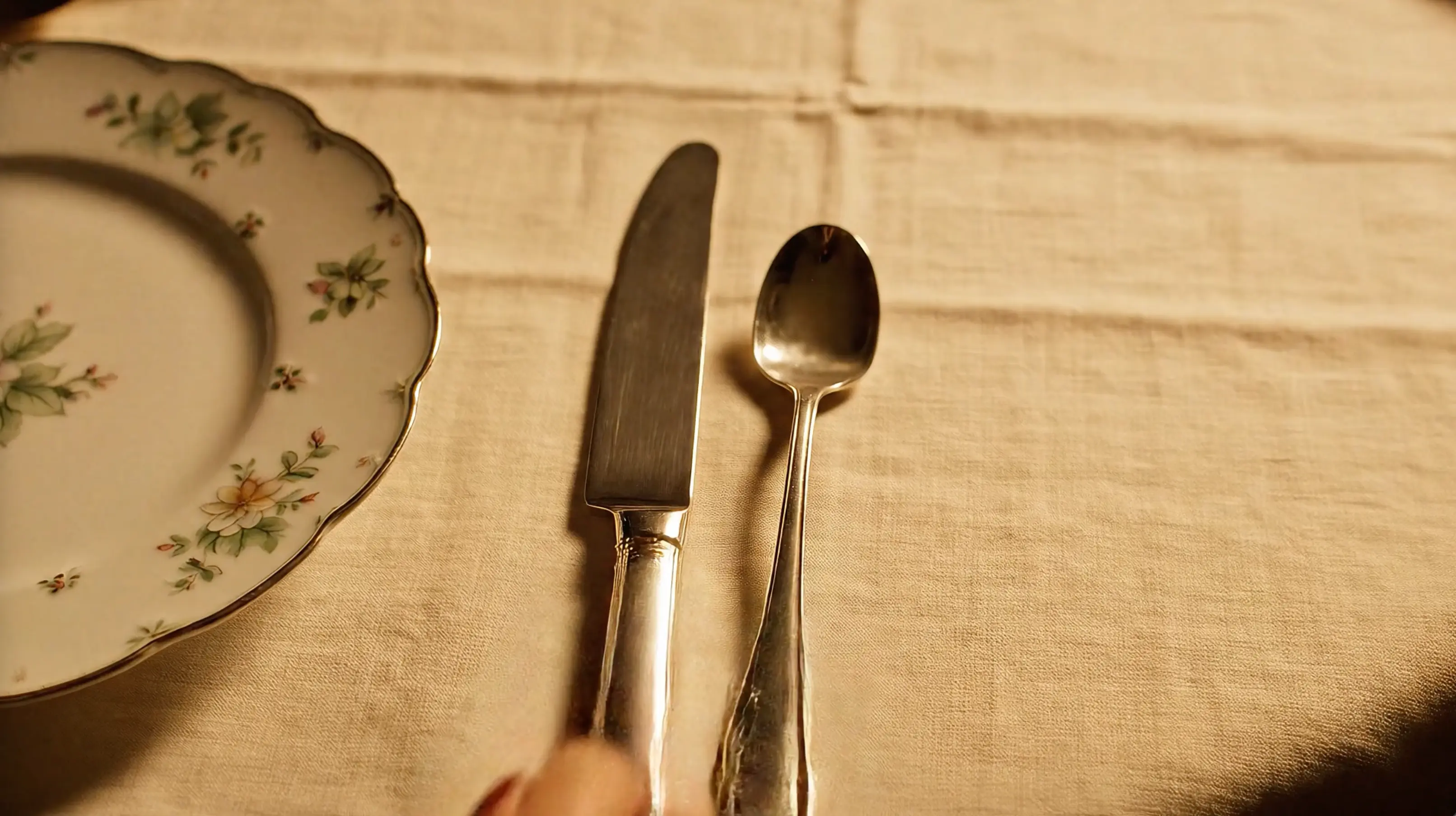
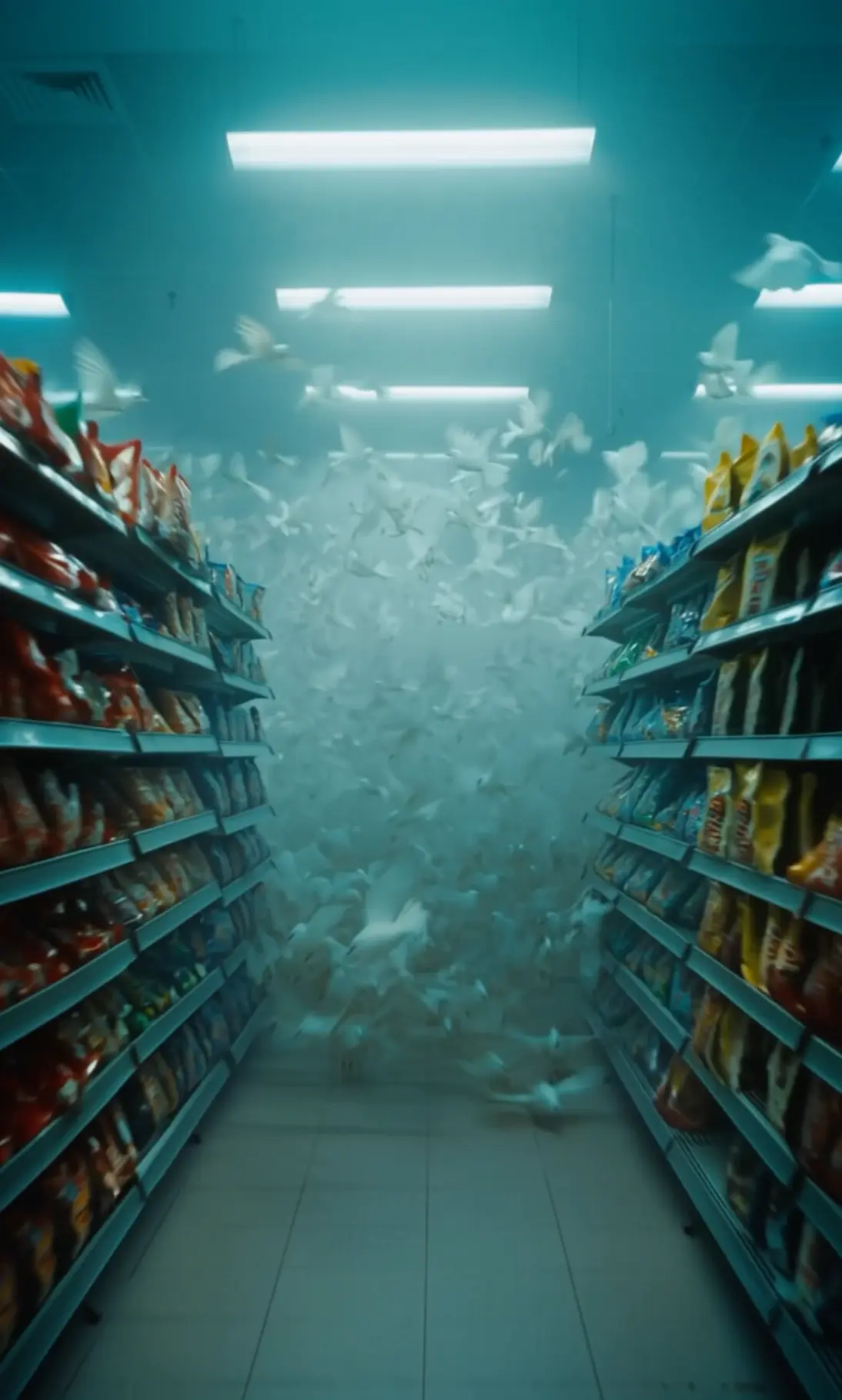
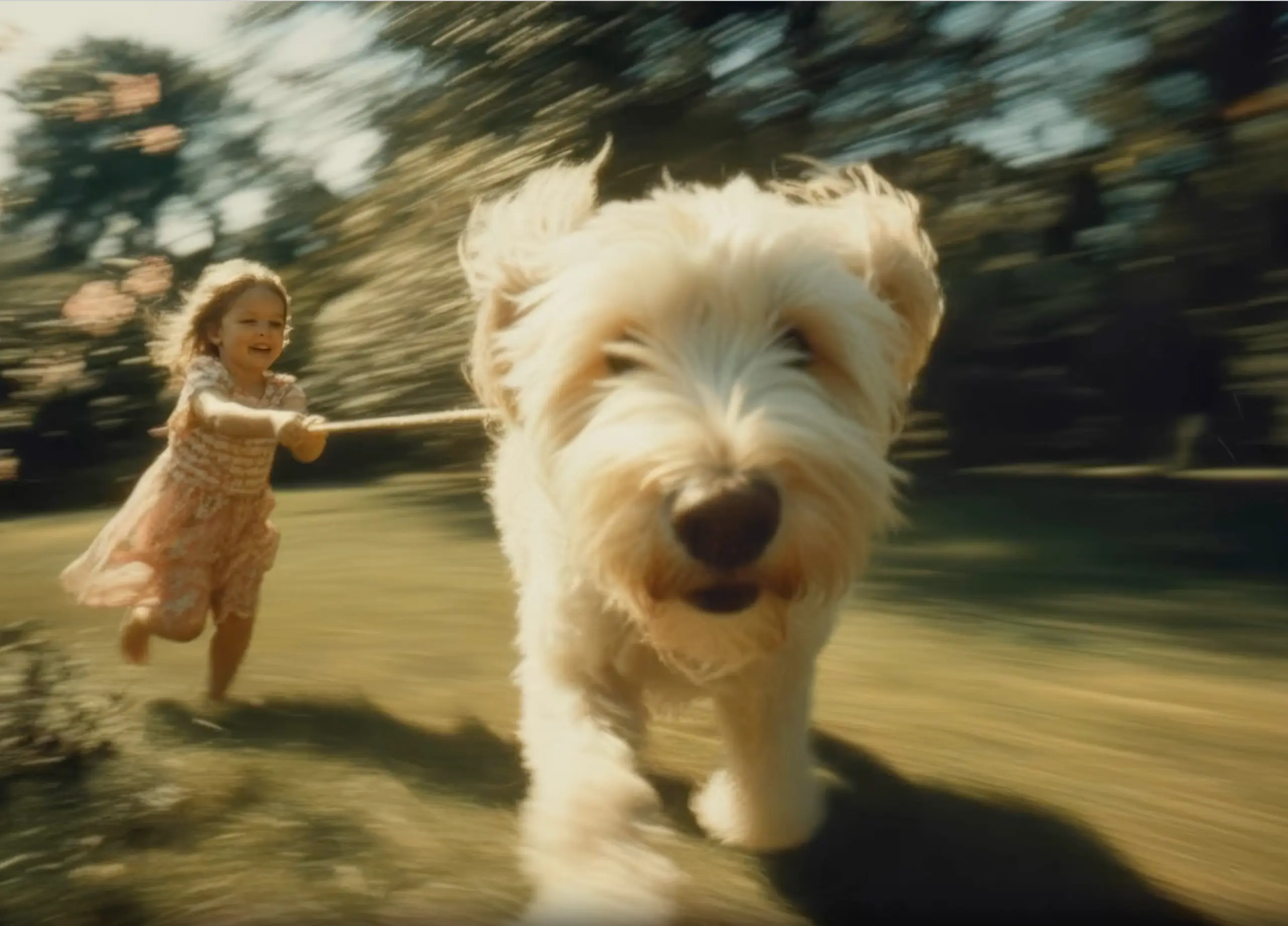
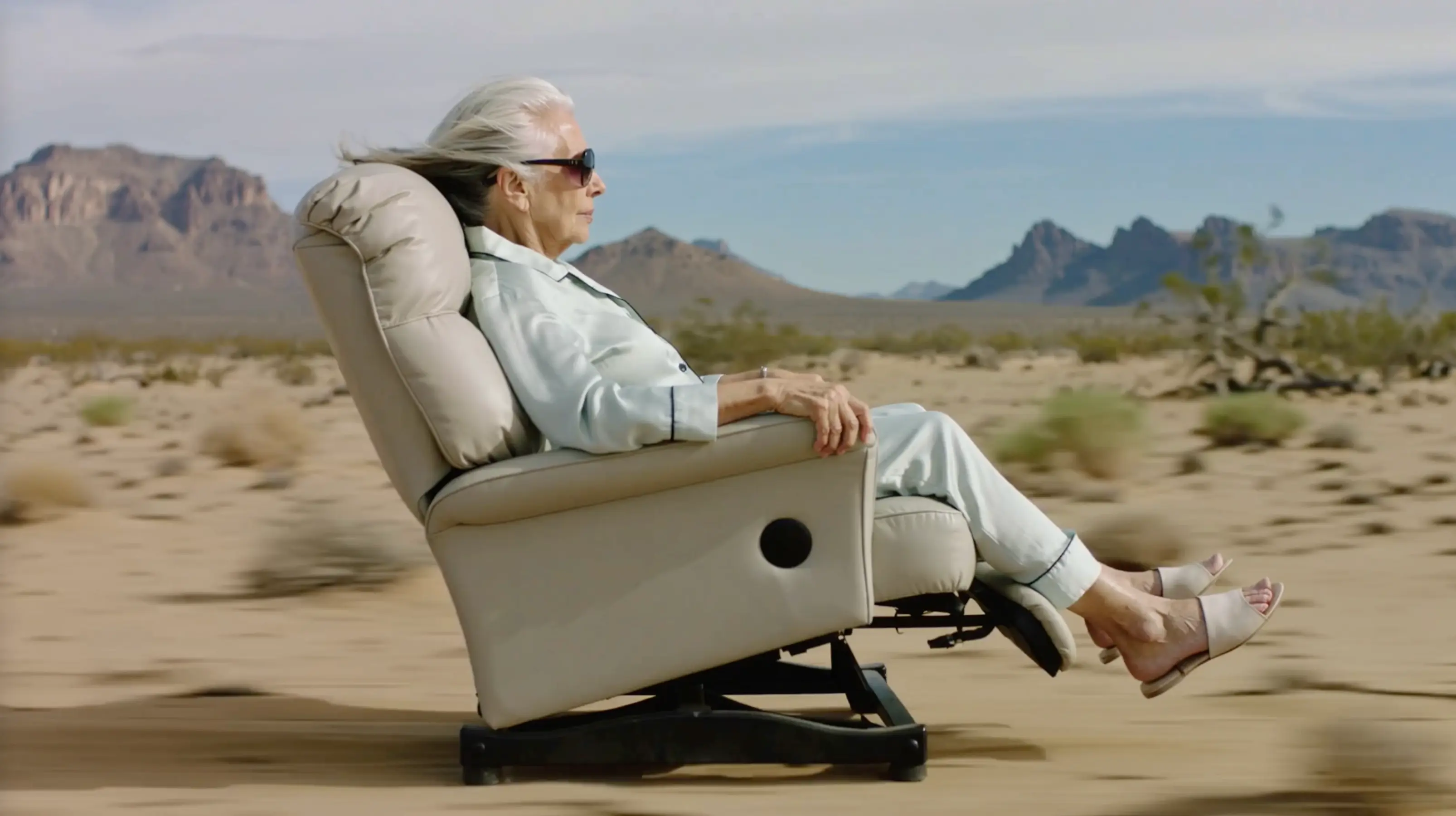
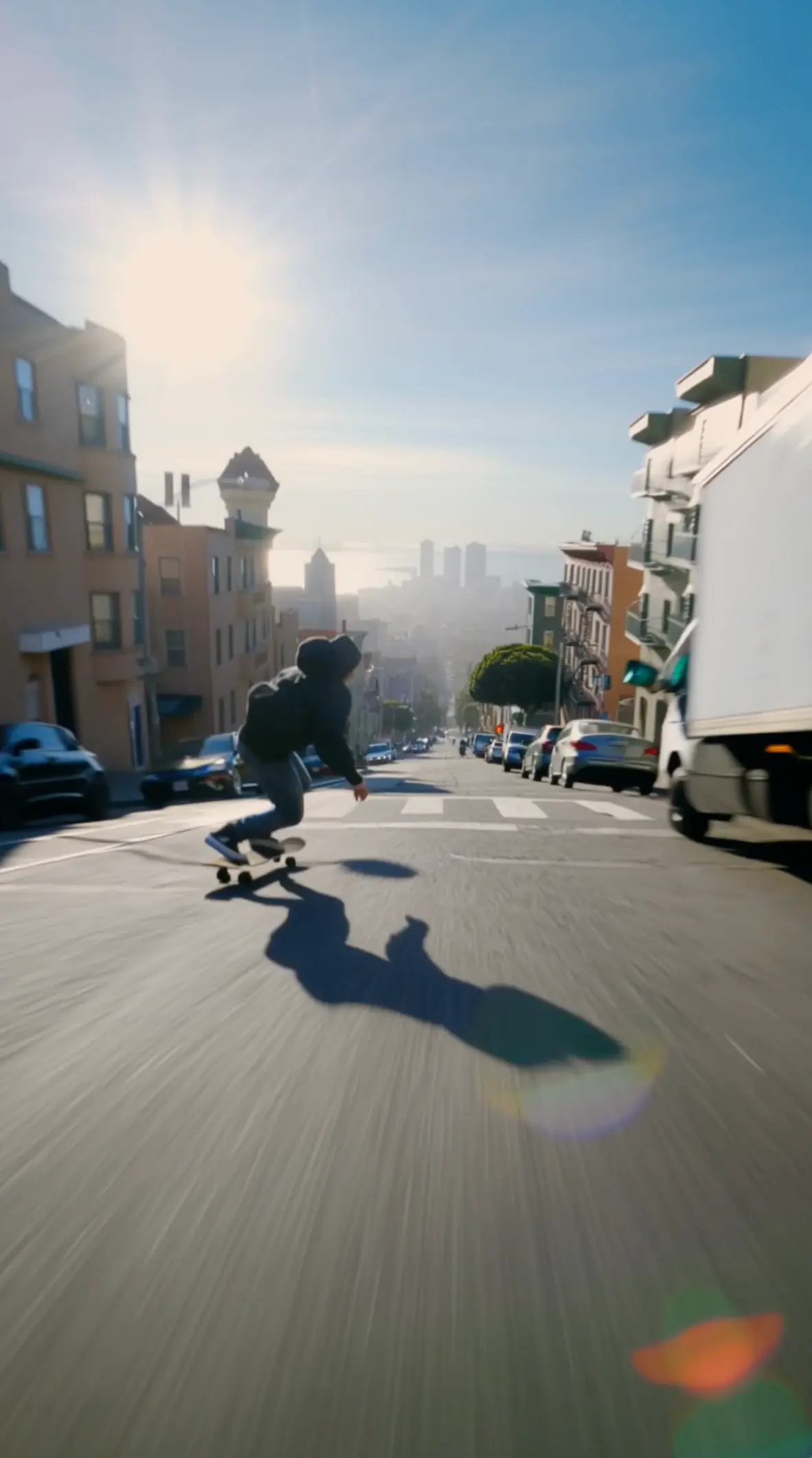
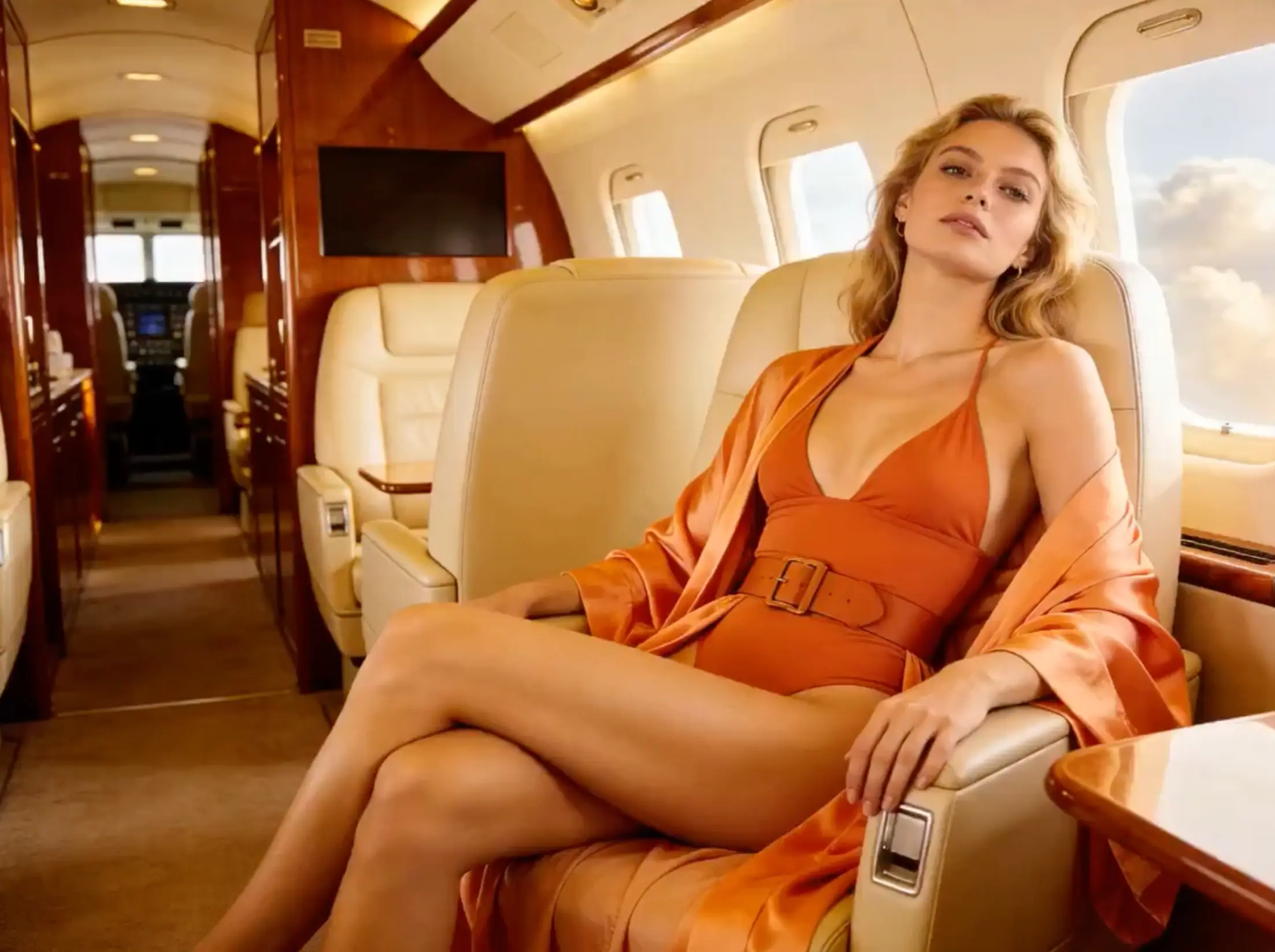
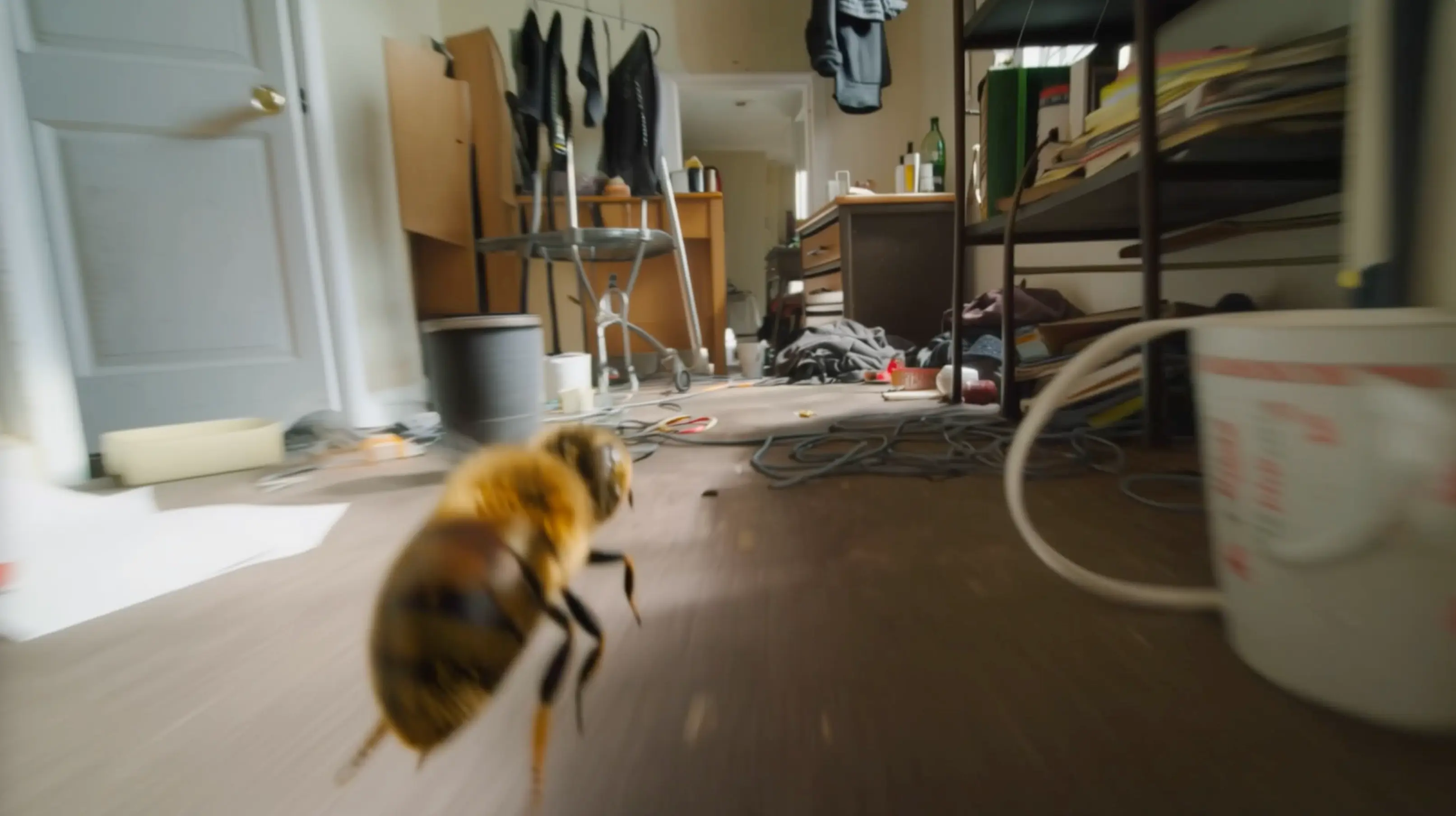
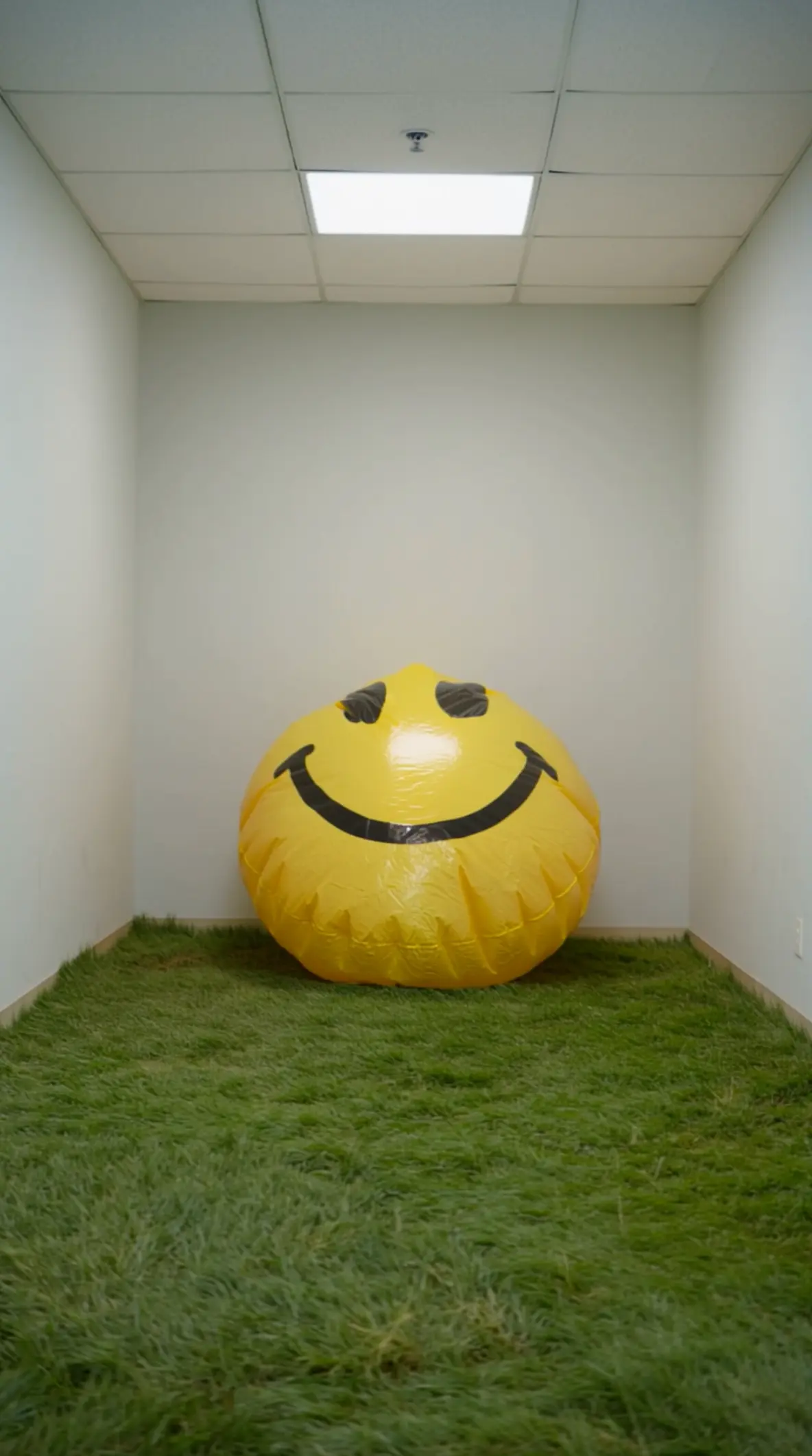
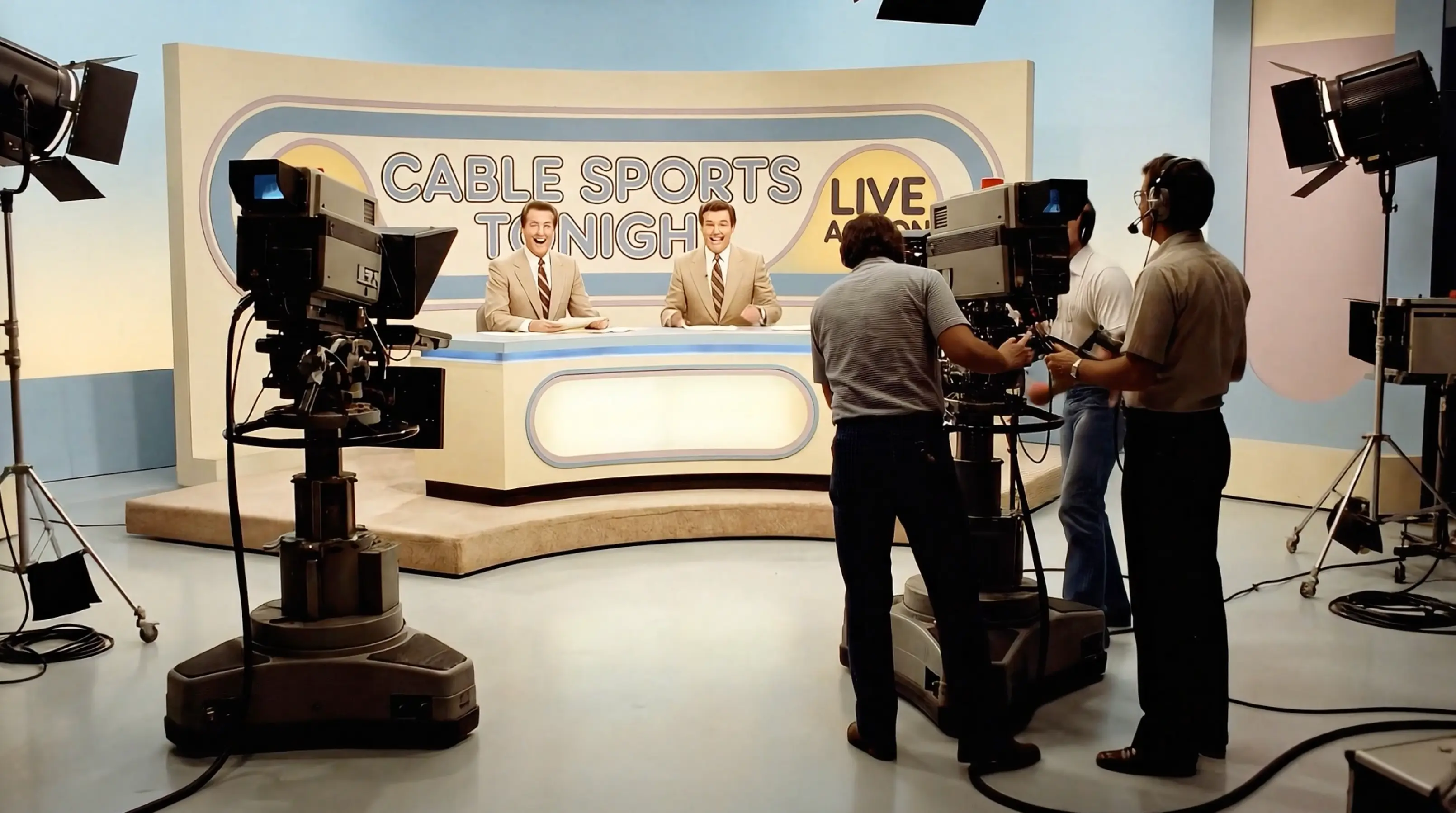
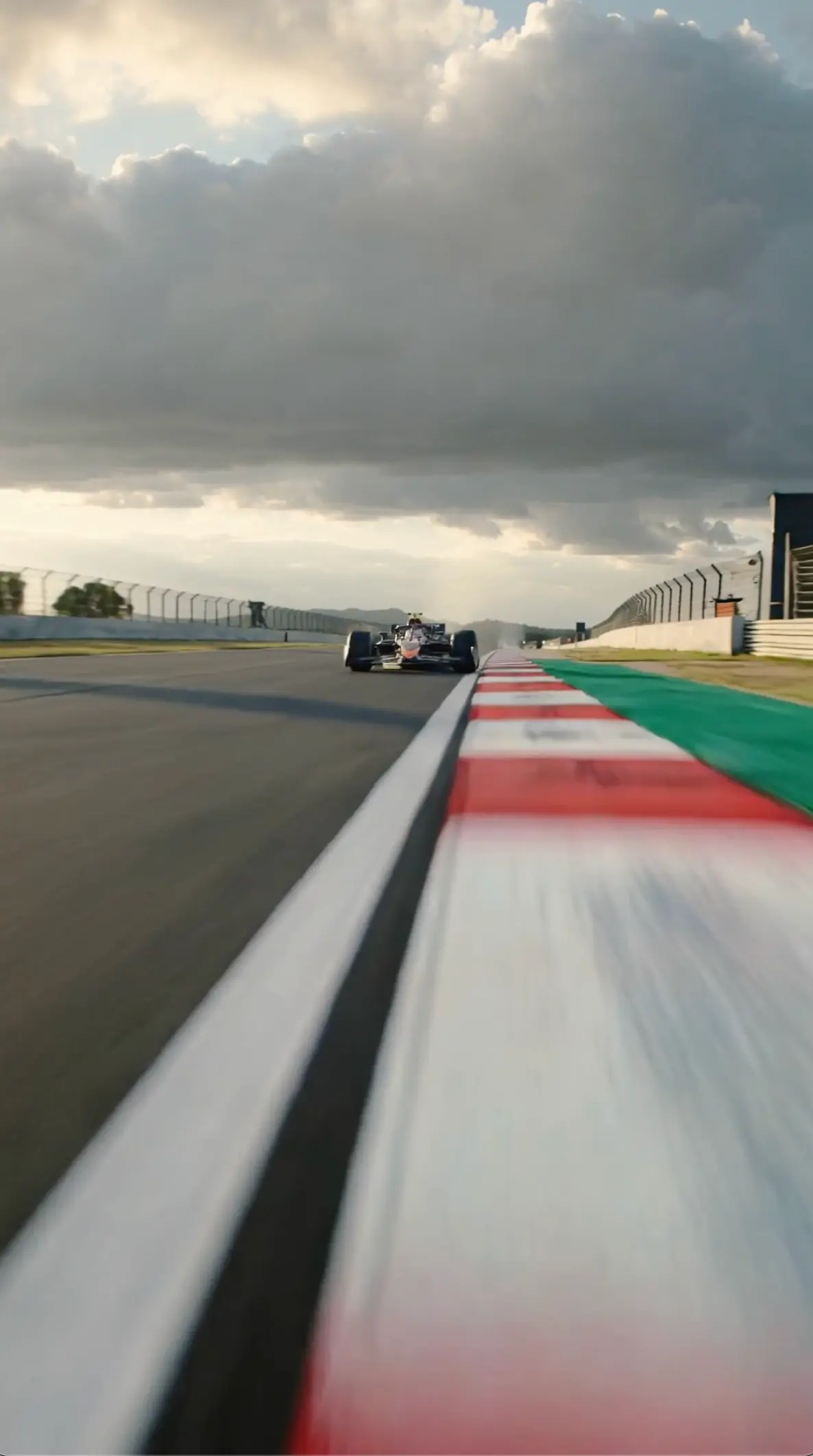
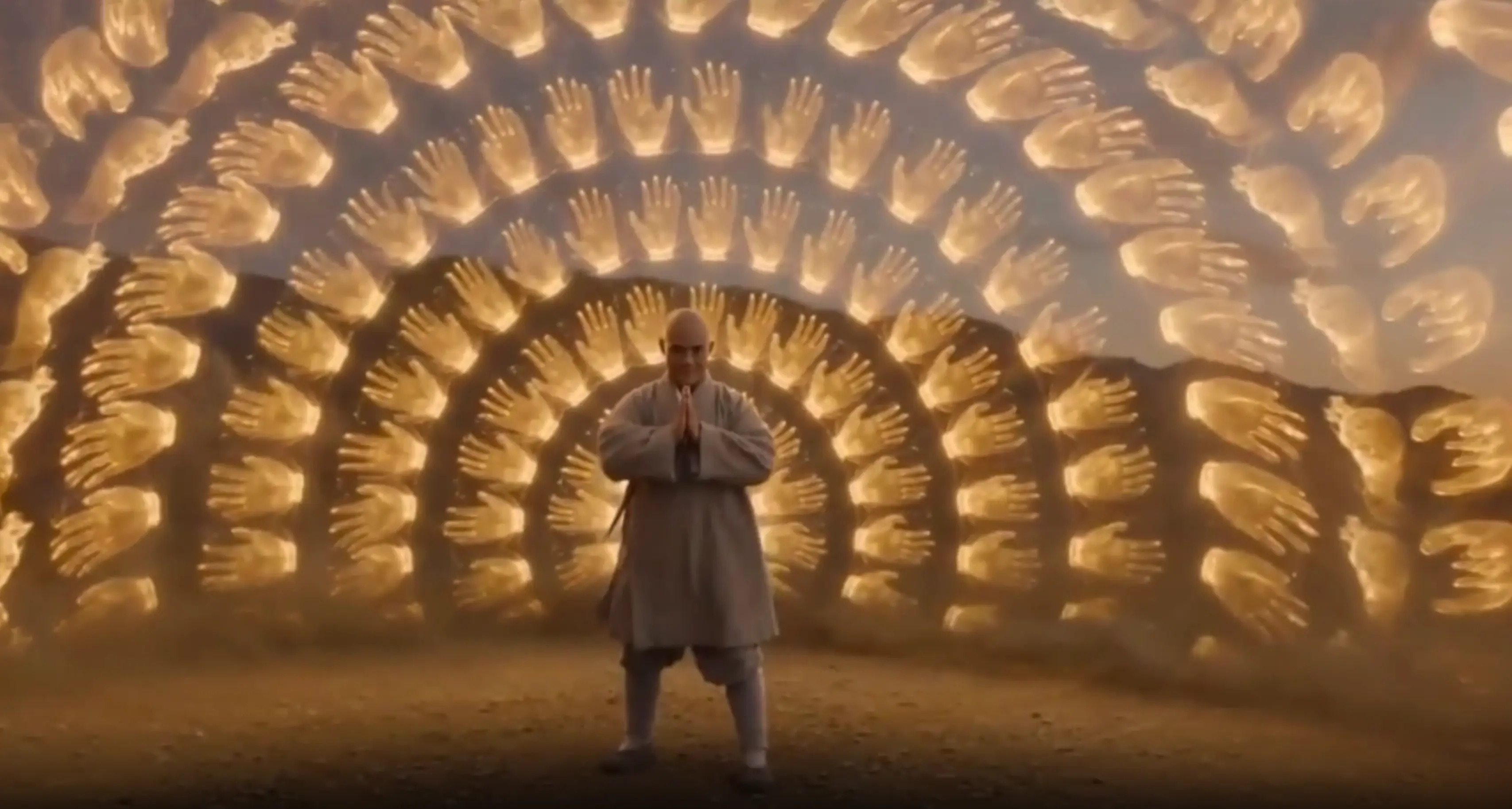
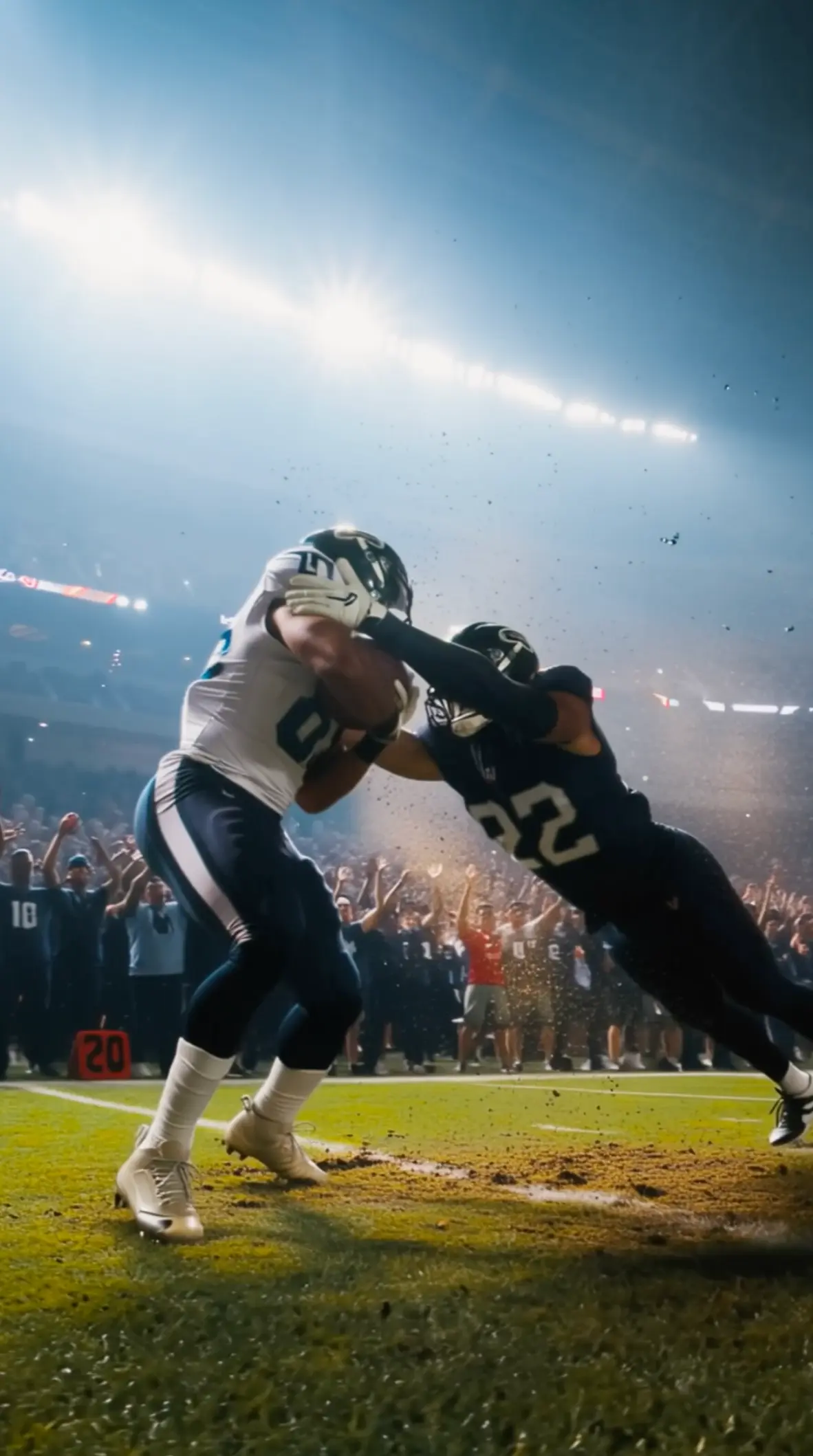
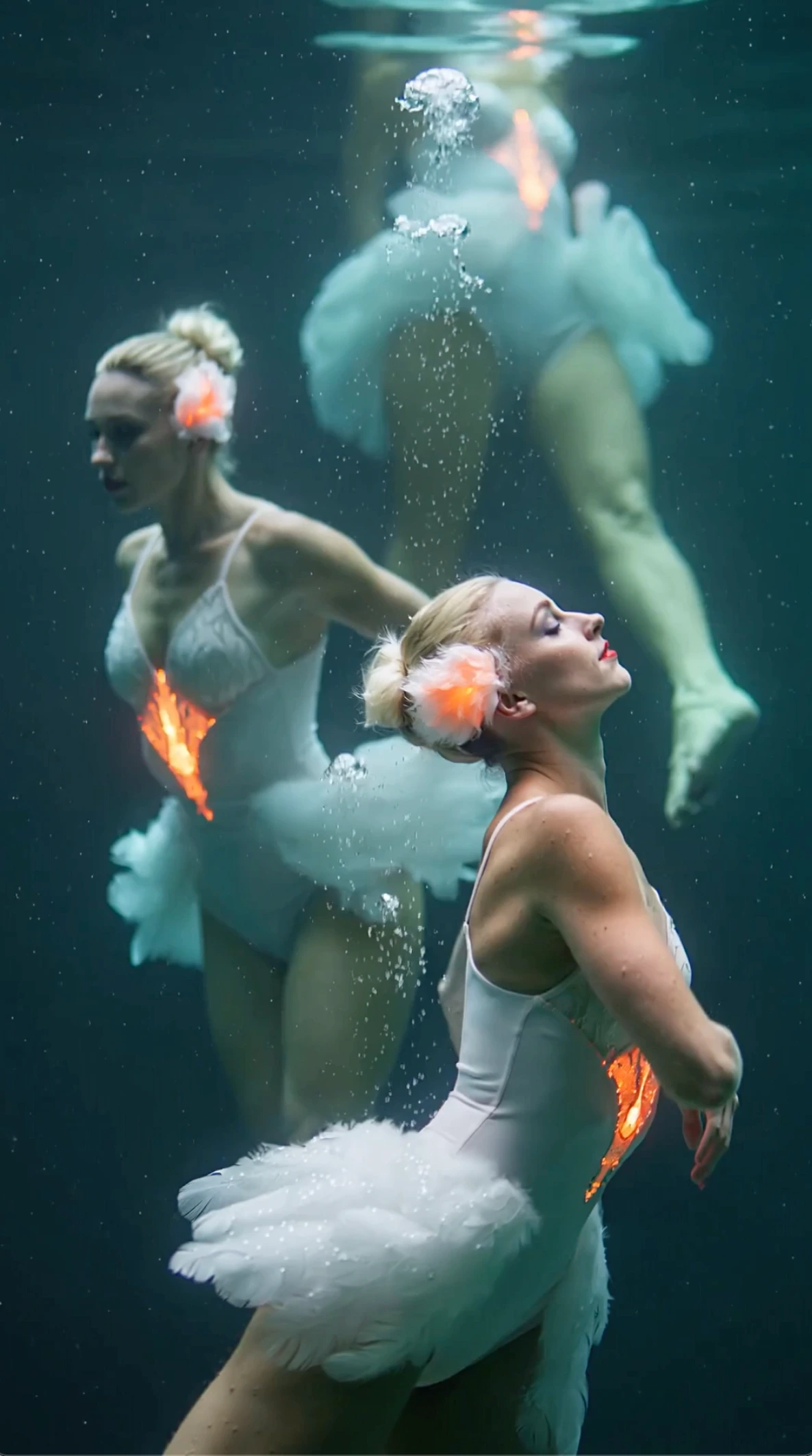
All videos and images shown are AI-generated synthetic content and do not depict real people or real events unless explicitly stated otherwise.
What Is New in Wan 3.0
Longer clips, sharper video, and clearer ways to start
Wan 3.0 makes everyday AI video easier to use.
You can create clips up to 1080p and 30 seconds, and start from the source material you already have—text, a photo, or a video.
That means fewer tiny clips to join later, and a better fit for social ads, product demos, and early scene tests.
Up to 1080p output
Get sharper video for product pages, ads, and client reviews when detail matters.
Clips up to 30 seconds
Fit more of a hook, demo, or short story into one clip instead of joining many short pieces.
Start from text, photo, or video
Write a scene, animate a photo, or restyle a video when the timing already works.
Why Creators Use Wan 3.0
Clear benefits for real projects
Draft concept videos up to 30 seconds before you book a shoot or final edit
Turn product and character photos into motion without rebuilding the look from scratch
Try new styles on footage you already have
Create in the browser so teammates can review drafts faster
How to get better results from text
Simple habits when you start with a written scene
Build a Prompt for Motion
Start with who is on screen, where they are, and what they do. Save style words for last. When the action is clear, the generator has a better chance of giving you a usable first take.
Direct Camera Movement
Pick one camera move per pass: push in, pan, orbit, or stay locked. Put that move on its own line, apart from what the subject does. One clear direction is easier to judge than a pile of film terms.
Refine One Scene at a Time
Change only one thing between generations—action, framing, or mood. You will see what actually helped. Rewriting the whole prompt every time usually hides the lesson and wastes good lines you already found.
Keep Action Ahead of Atmosphere
Describe the verb first, then add light, weather, or mood in a short line. If the mood note is longer than the action, trim it. Clear motion reads better than a pretty paragraph with a weak beat.
Aim Each Prompt at One Moment
Ask for an intro, a reveal, or a reaction—not a full sequence. One job per run keeps edits simple. For a longer story, generate each moment separately and cut them together later.
Switch Tools When Text Is Not Enough
Already have a still, a clip, or mixed files? Use the matching tool page instead of forcing a text-only start. Words are great for inventing a look. Other workflows are better when the look or timing already exists.
How this workflow works
A simple loop from words to clip in your browser
Describe the scene
Open the generator and write who appears, where they are, and what happens. Keep the first draft short so you can revise it. Long openings make it hard to spot the one line you should change next.
Add one camera direction
Name the framing and one travel move. Avoid stacking every cinematic term into the same request. A single clear move is easier to review, and you can adjust mood on a later pass.
Generate and revise
Watch the clip, then edit one instruction at a time. Keep the lines that worked. Drop the ones that fought the beat. That is how results get sharper without starting over every round.
Why start with text
What you gain when you start from words
No source media required
Begin when you only have a brief. This workflow does not wait for a still or reference clip. You can still move a winning beat into another input path later.
Faster idea comparison
Swap one sentence to compare moods without rebuilding uploads. When only one line changes, side-by-side review stays honest, and your team can agree on direction before heavier work begins. Keep a shared note of the lines that already worked so the next editor does not restart from a blank page.
Direction stays editable as text
Framing travel and subject action live in lines anyone on the team can read and edit. Precise feedback is easier when the instruction block is visible, not buried in a timeline.
A clear revision loop
Each generation maps back to a written instruction, so feedback stays specific. “Change the verb” is easier to act on than “make it better,” and it shortens the path to a usable take.
Many variants from one outline
Reuse the same scene skeleton and change only style or action for alternate cuts. Shared structure helps campaigns stay coherent while you test different moods for each channel.
Easy handoff to other inputs
Once a look is chosen, take the same idea to the image to video or video to video page. Use text to explore. Use the other tools later to lock appearance and timing with real media.
When this path helps most
Jobs that start from language, not from existing media
Concept ads from a brief
Turn a marketing line into a first visual beat before any product photo is ready. Teams can agree on tone and action early, then decide later whether photography should lock the look.
Social hooks from scripts
Draft short hooks from captions or scripts, then adjust framing for vertical or landscape. Starting from words lets you explore pacing before you book a shoot or lock a design file.
Storyboard beat tests
Try alternate actions for one scene without uploading boards. Early timing checks help when you only have notes, and they catch a weak beat before production spends real money on it.
Explainers from outlines
Turn outline bullets into simple teaching moments when you need motion drafts before filming. Keep the written outline as the source of truth, and regenerate until the point is clear on screen.
Shot tests before a shoot
Visualize written scene notes and compare framing choices before you commit to a shoot plan. Collaborators can comment on action and mood without waiting for uploads that do not exist yet.
Product ideas without photos
Describe a product moment in words when photography is not ready. Once you have a still or clip, move to the matching workflow so appearance is locked by real media, not adjectives.
Common questions
Short answers before you write your first prompt
What does Wan 3.0 text to video do?
With Wan 3.0 text to video, you write a scene in plain words and get a short clip back in the browser. Generate, watch the result, then revise the lines. There is nothing to upload here.
Do I need an image to use Wan 3.0 text to video?
No. Wan 3.0 text to video is for prompt-only starts. If you already have a photo, use image to video. If you have a clip, use video to video. Matching the input to the job usually saves rounds.
How should I write a Wan 3.0 video prompt?
Describe subject, setting, and action first. Add one framing direction and a short style note. Avoid packing several competing moves into one request. Short lines are easier to fix than dense paragraphs.
Why separate camera movement from subject action?
Models often mix up who is moving with how the lens travels. Naming them separately usually gives clearer results and makes your next edit obvious. If both feel wrong, fix action first, then framing.
Can I make a full multi-scene story in one prompt?
Aim for one moment per generation. Refine one scene at a time, then plan more shots as separate requests. Packing a whole sequence into one box usually muddies the pacing.
Is this the same as multi-modal generation?
No. The mixed-input page combines stills, clips, and sound together. This page stays text-led. Open that other page only when several assets need to work in one request.
How do I improve a weak clip?
Change one instruction only—action, framing, or mood—then generate again. Broad rewrites make it hard to learn what worked. Keep a short note of the lines that helped so you do not lose them.
What output sizes can I create?
Wan 3.0 supports 1080p video output and clips up to 30 seconds. Explore a beat first, then raise length or resolution when the action and framing already feel right.
What is the next step after a good Wan 3.0 text draft?
Lock the beat you like, then continue in the matching Wan 3.0 tool if you gain a still, clip, or mixed references. Carry forward the instruction lines that already work so later pages inherit clear direction.
Create a Wan 3.0 video from text
Open the generator, write one clear action line, and build your first scene
Works in your browser