
Wan 3.0 Image to Video: Bring a Photo to Life
Already have a photo you like? Add movement to it instead of describing the whole look again. Upload the photo, say only what should move, and compare every take with the original. You can create up to 1080p video and clips up to 30 seconds.
 Wan 3.0Multi-Input AI Video Generator
Convert static images to dynamic videos
Tip: Be detailed and specific for better results. Describe the subject, style, lighting, mood, and composition.
Example Gallery
See what you can create with image to-video
Gallery
Scroll through sample clips. Tap any video to open it full screen.
All videos and images shown are AI-generated synthetic content and do not depict real people or real events unless explicitly stated otherwise.
Showcase
Browse sample AI video clips. Click any tile to play the full clip.
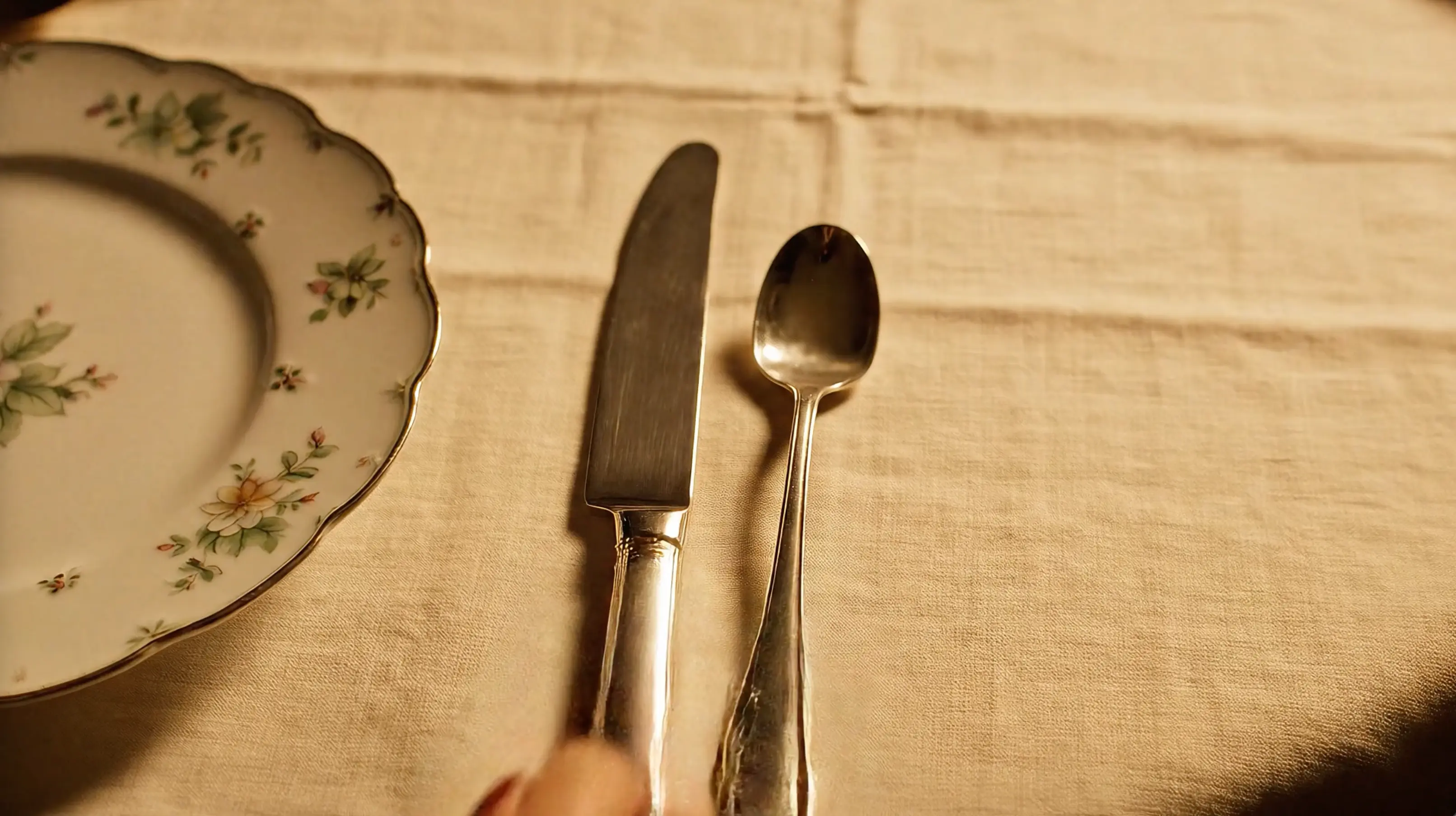
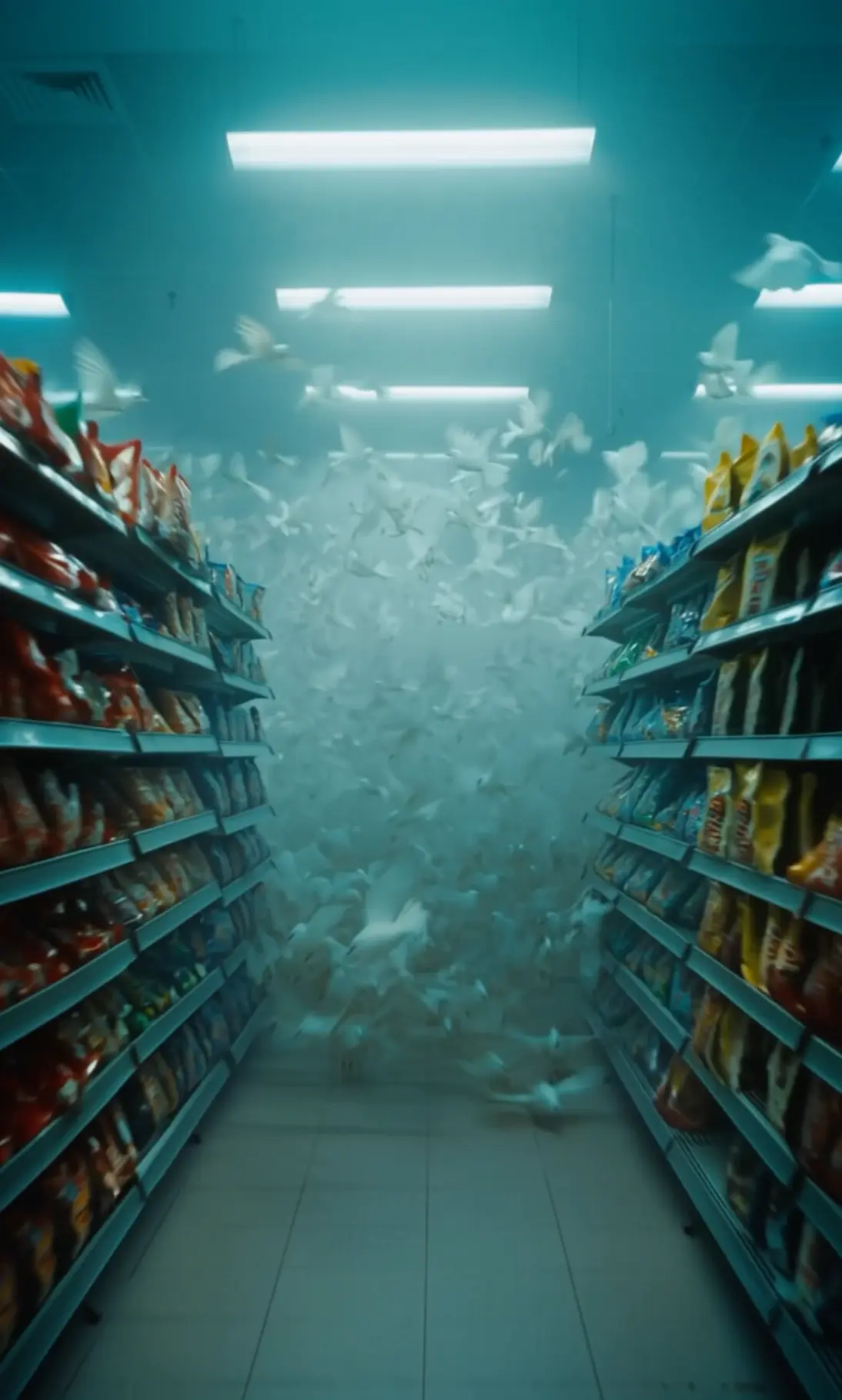
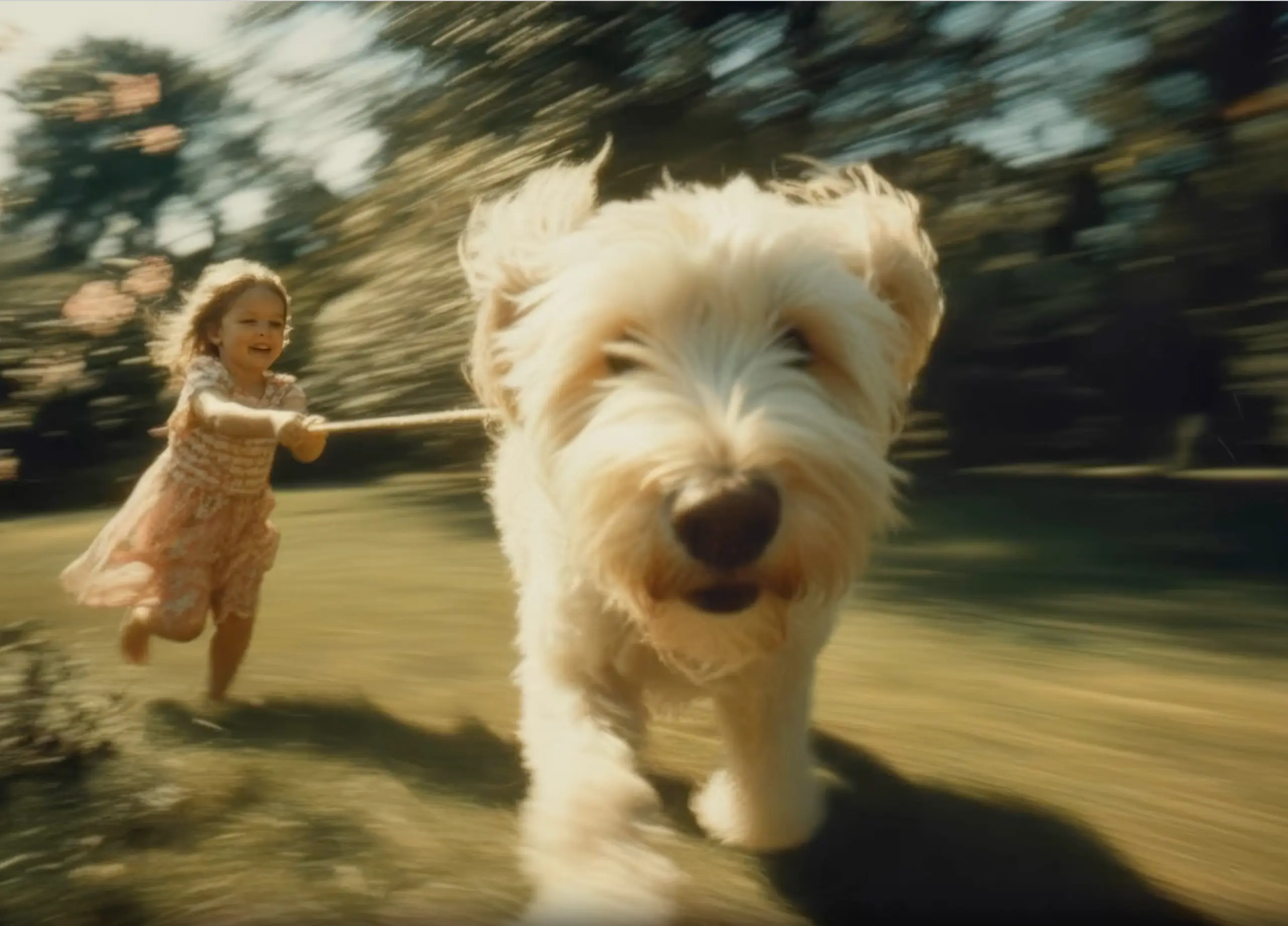
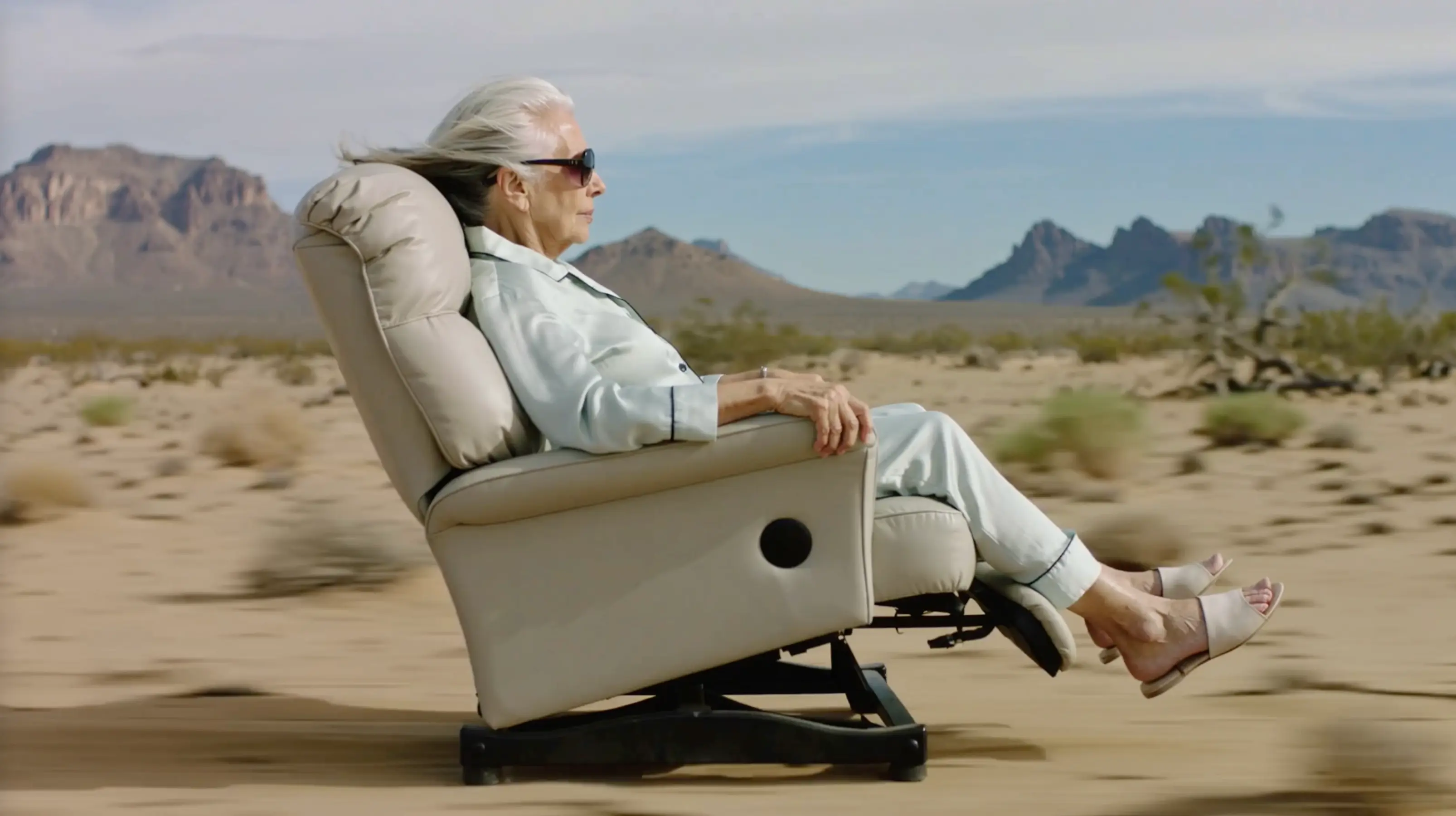
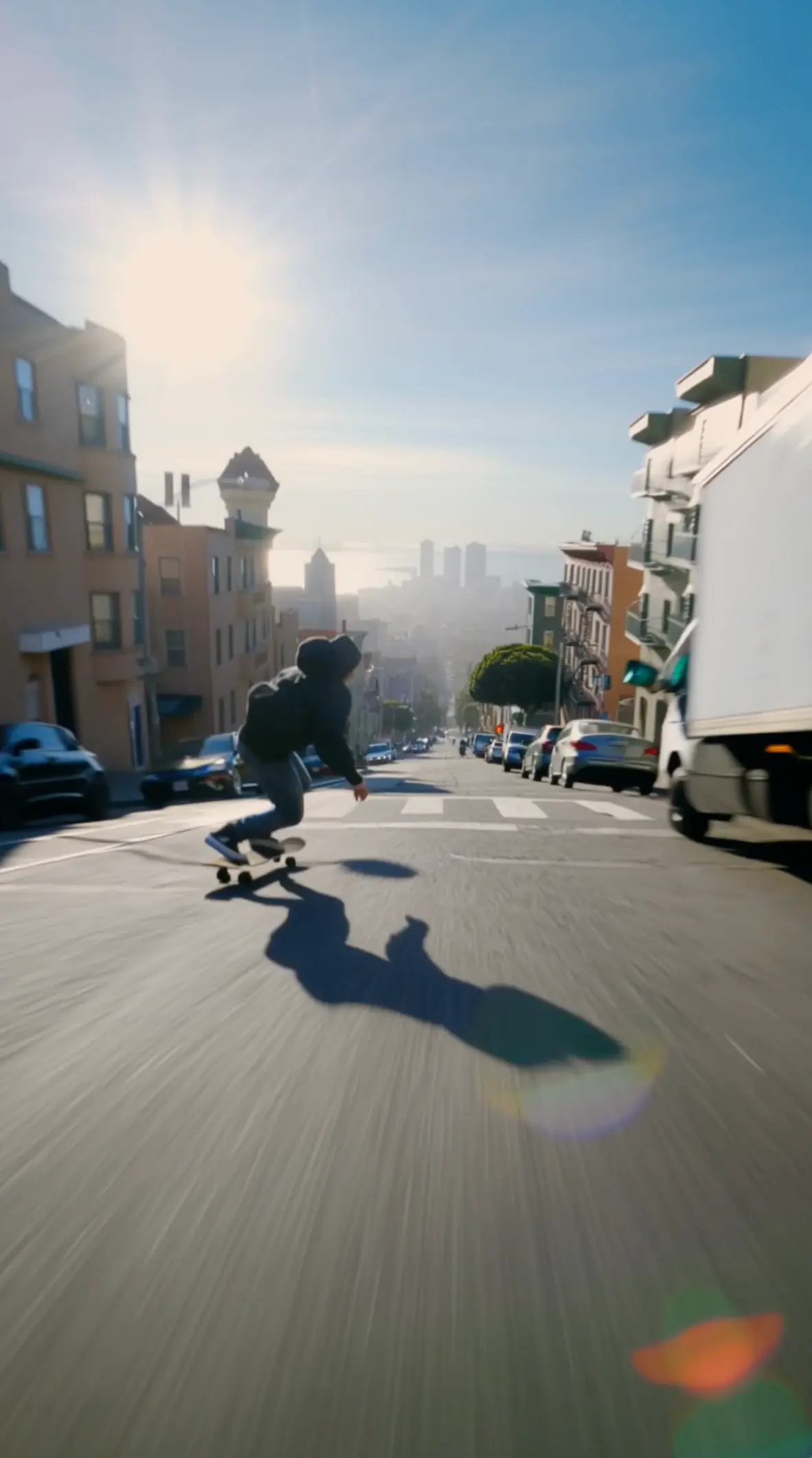
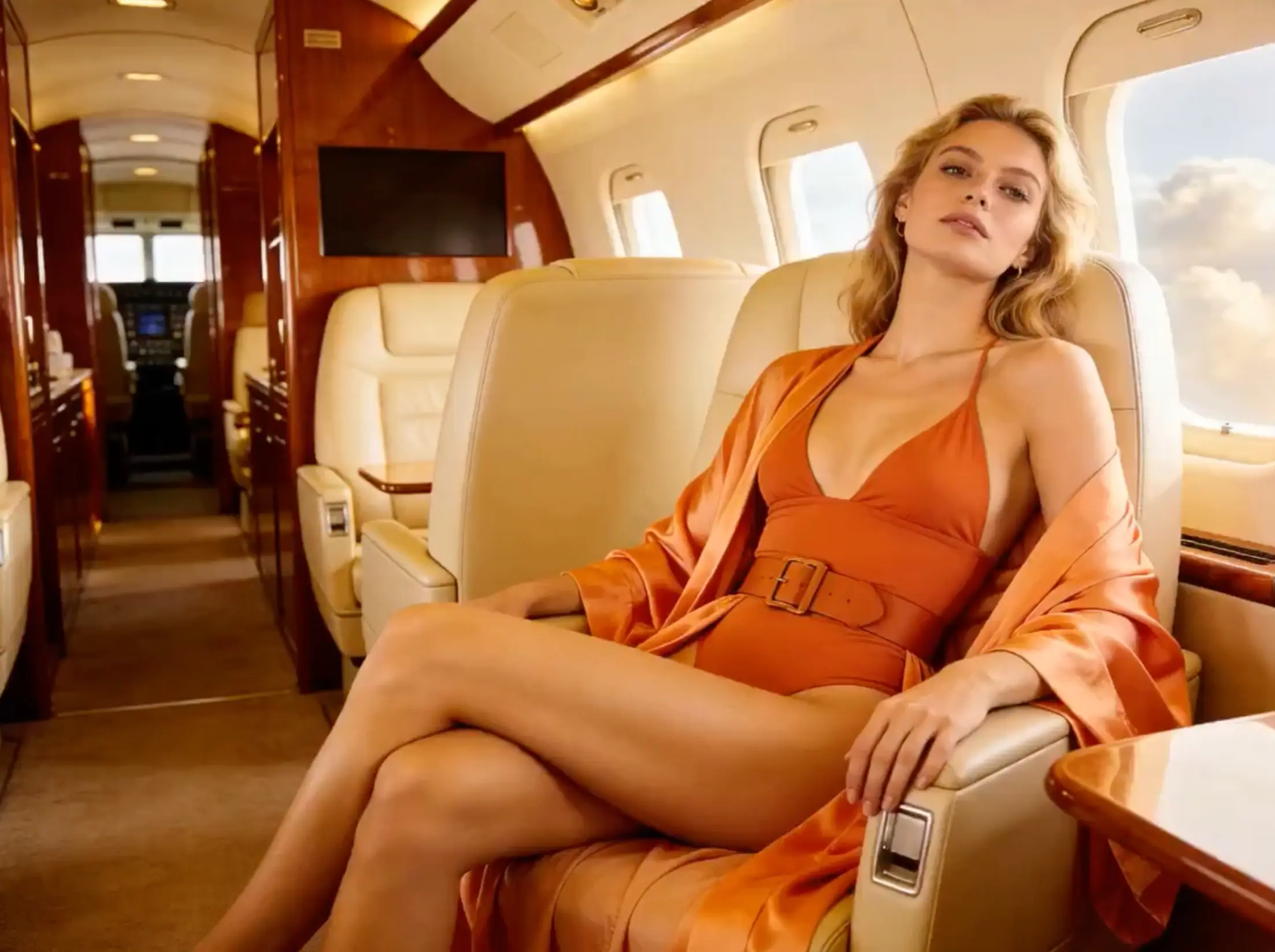
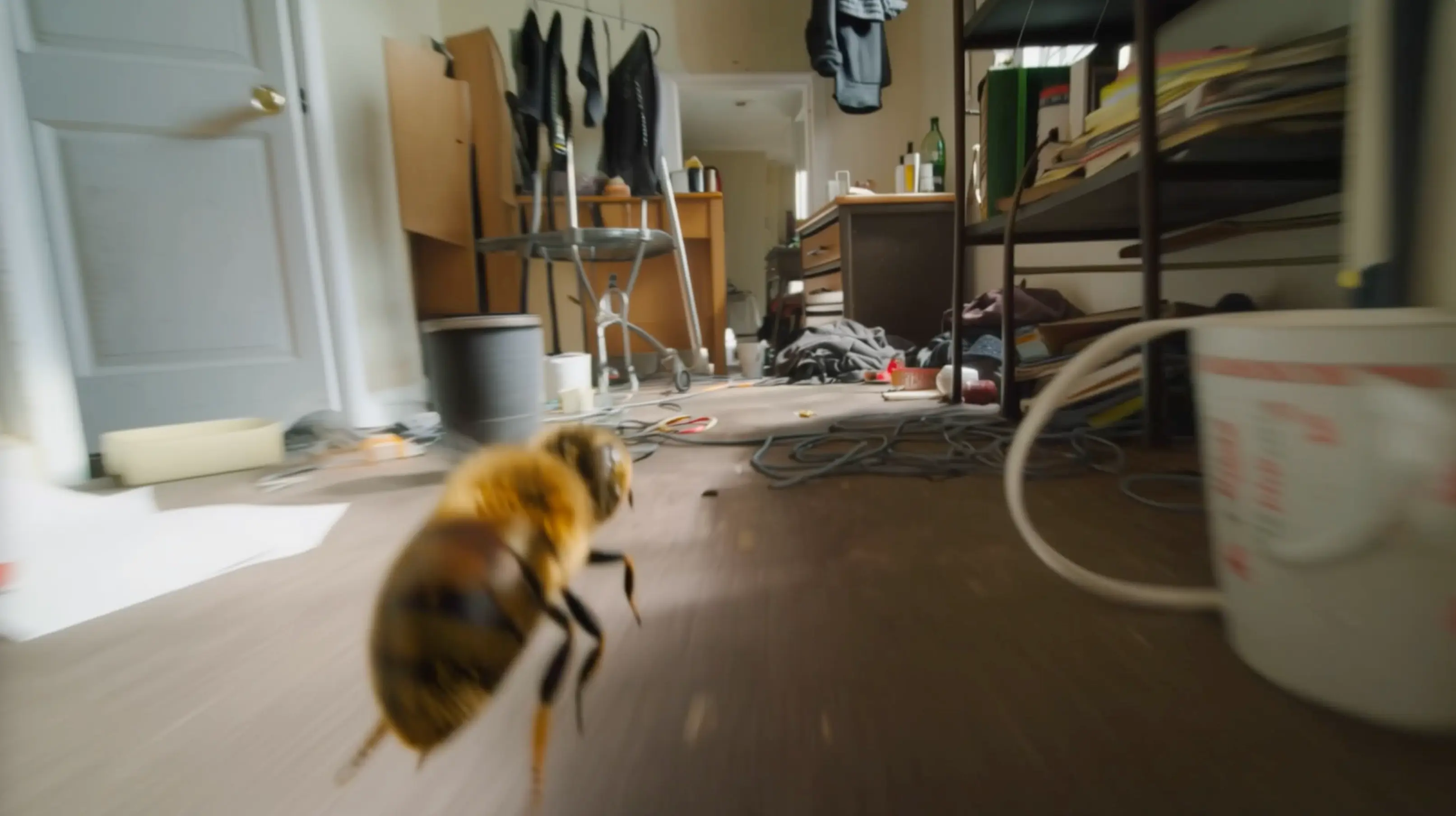
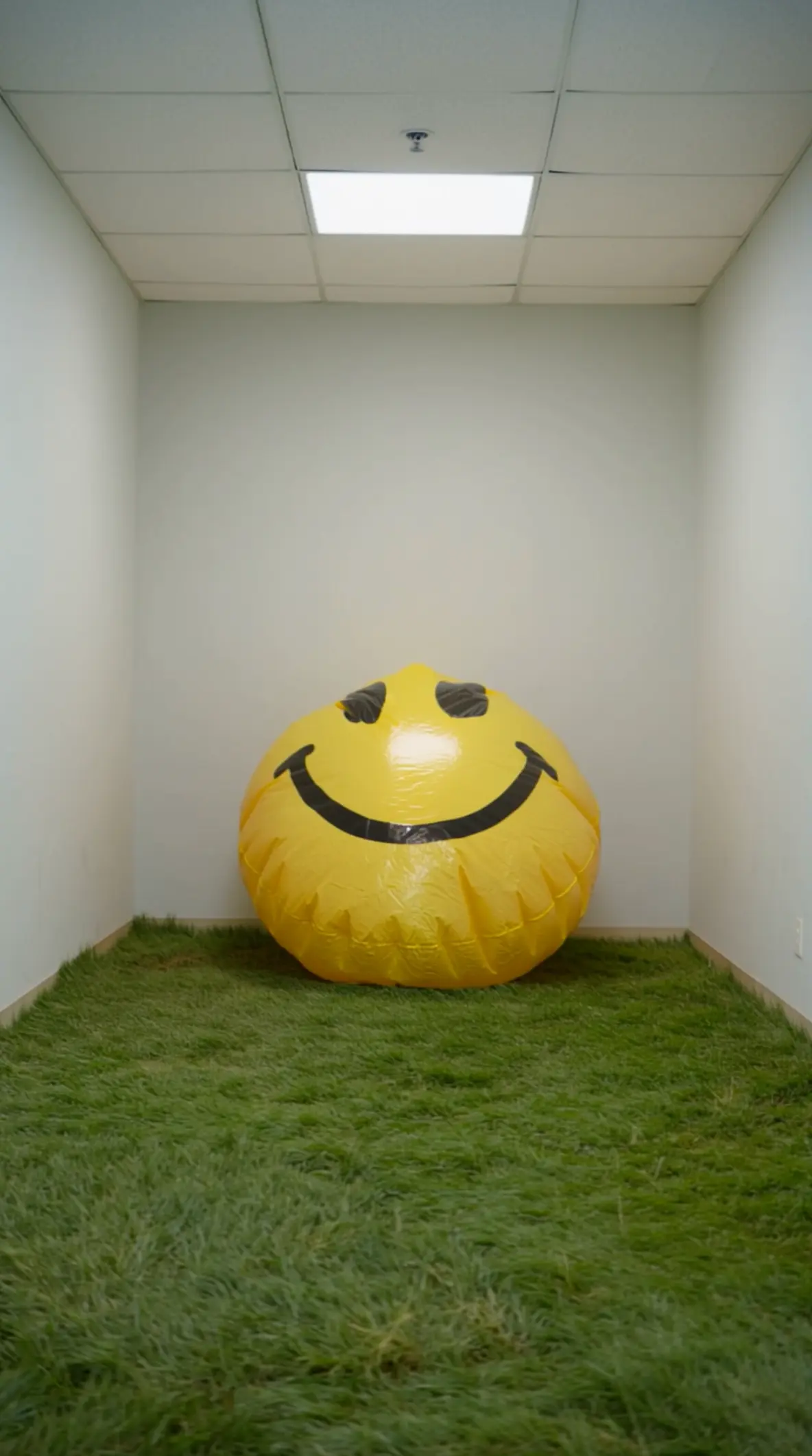
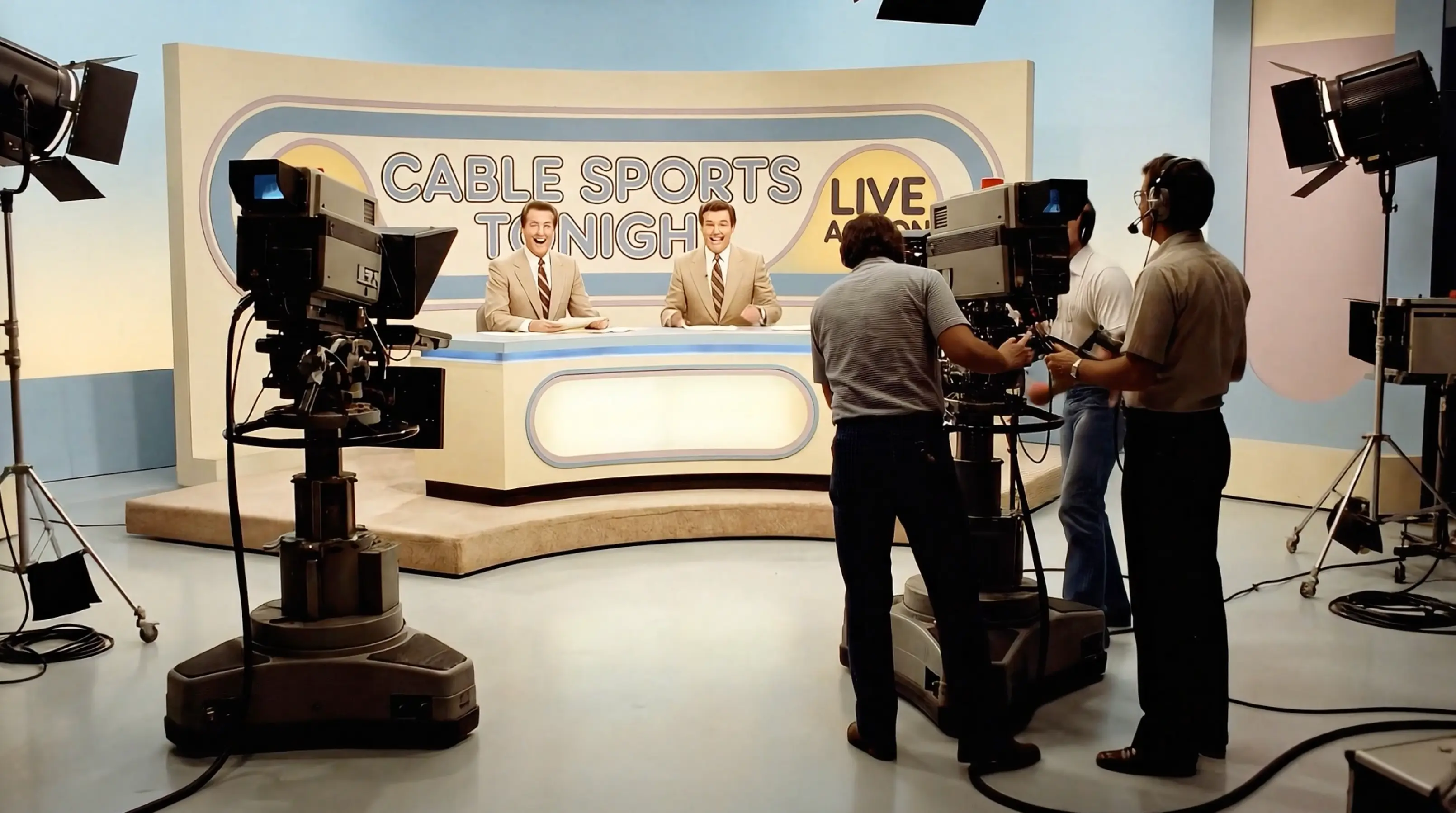
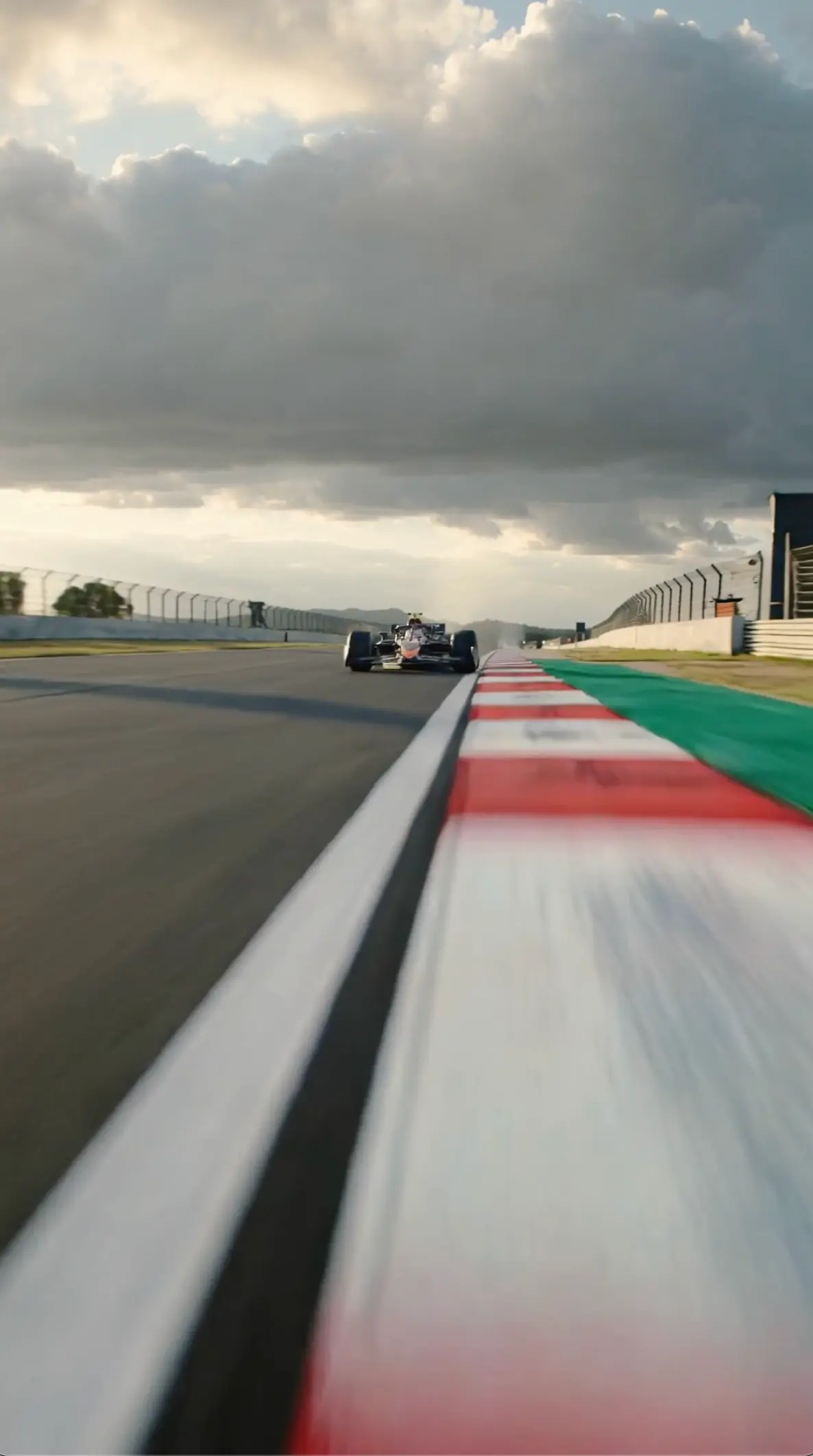
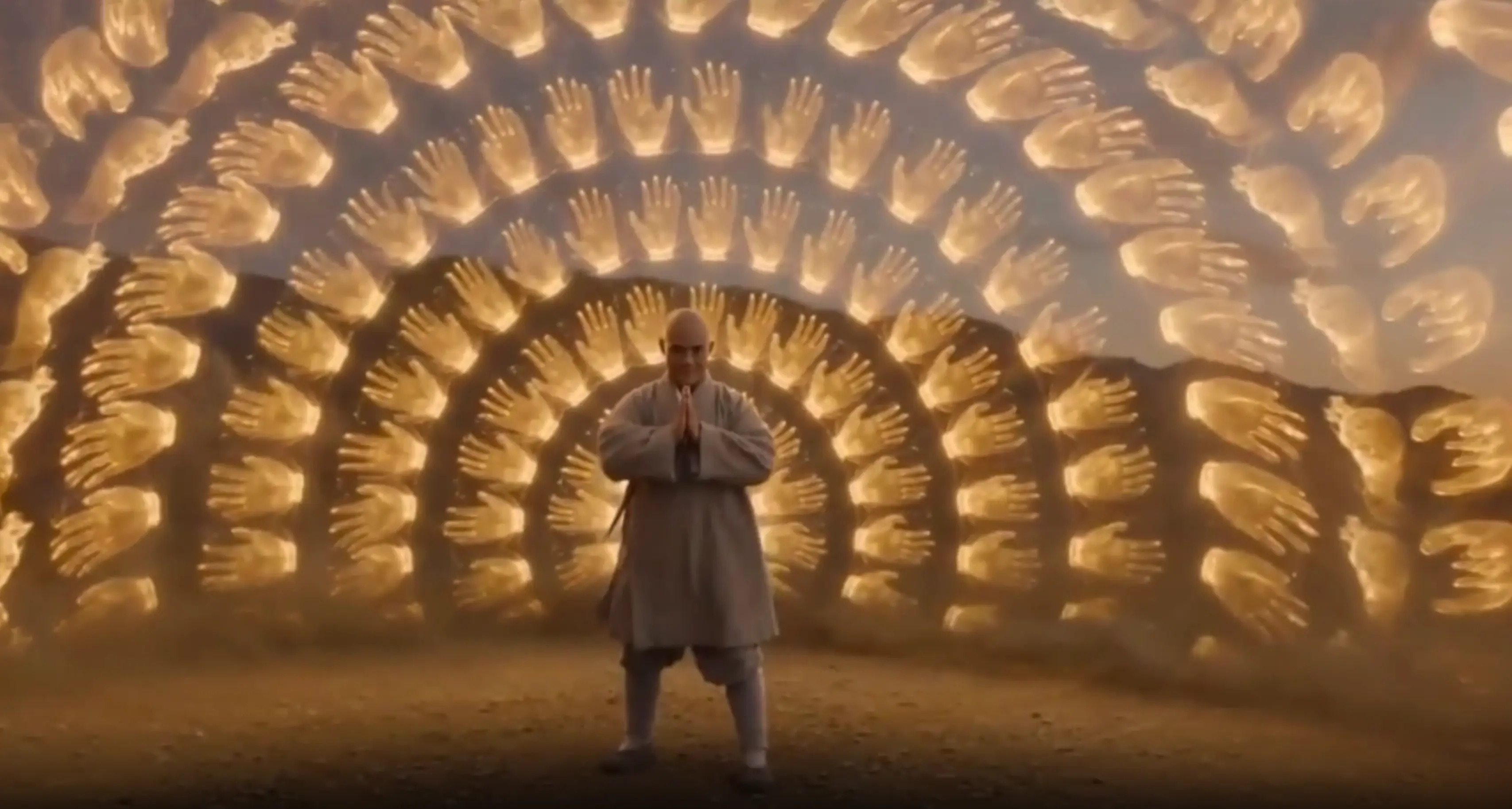
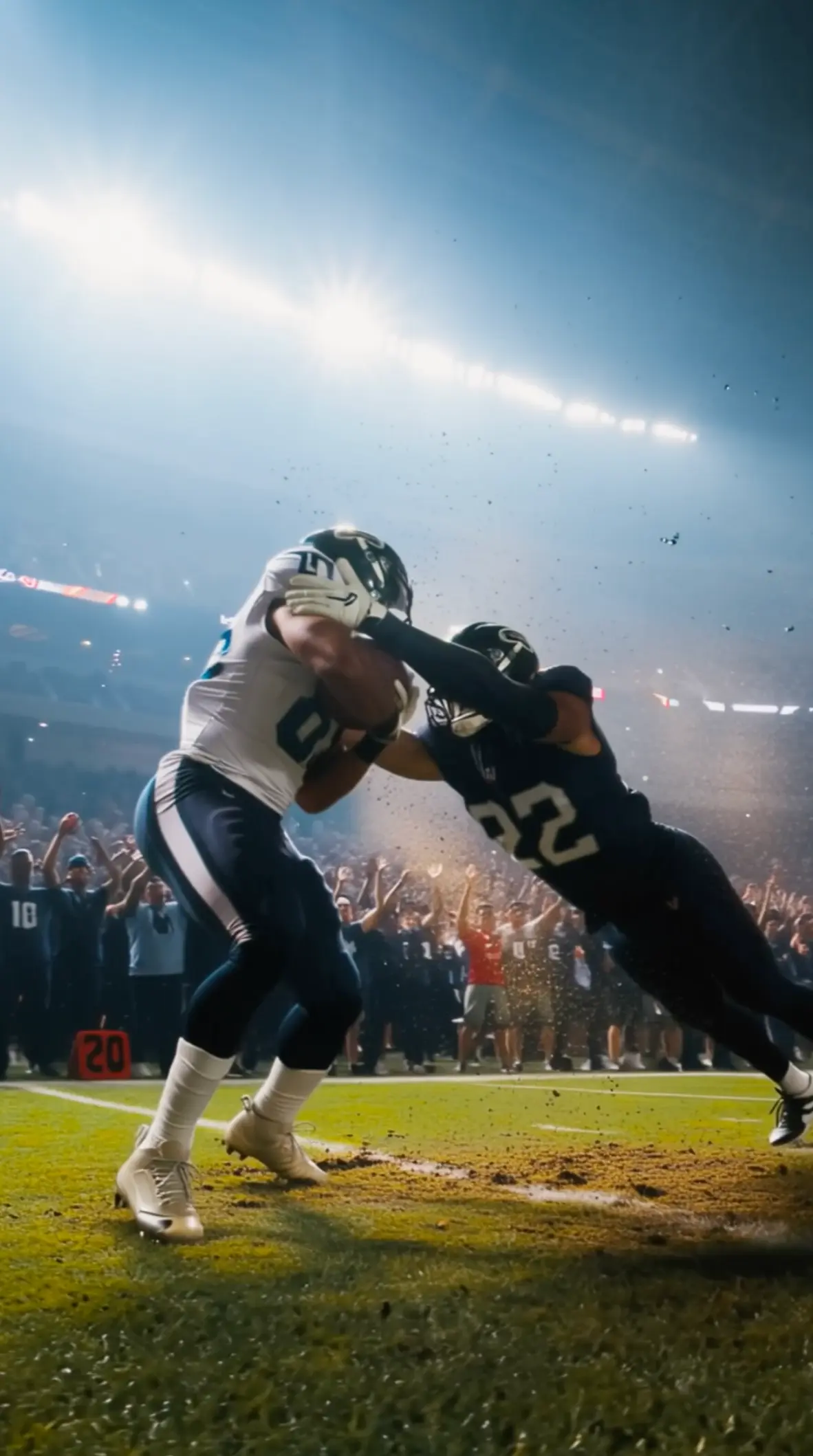
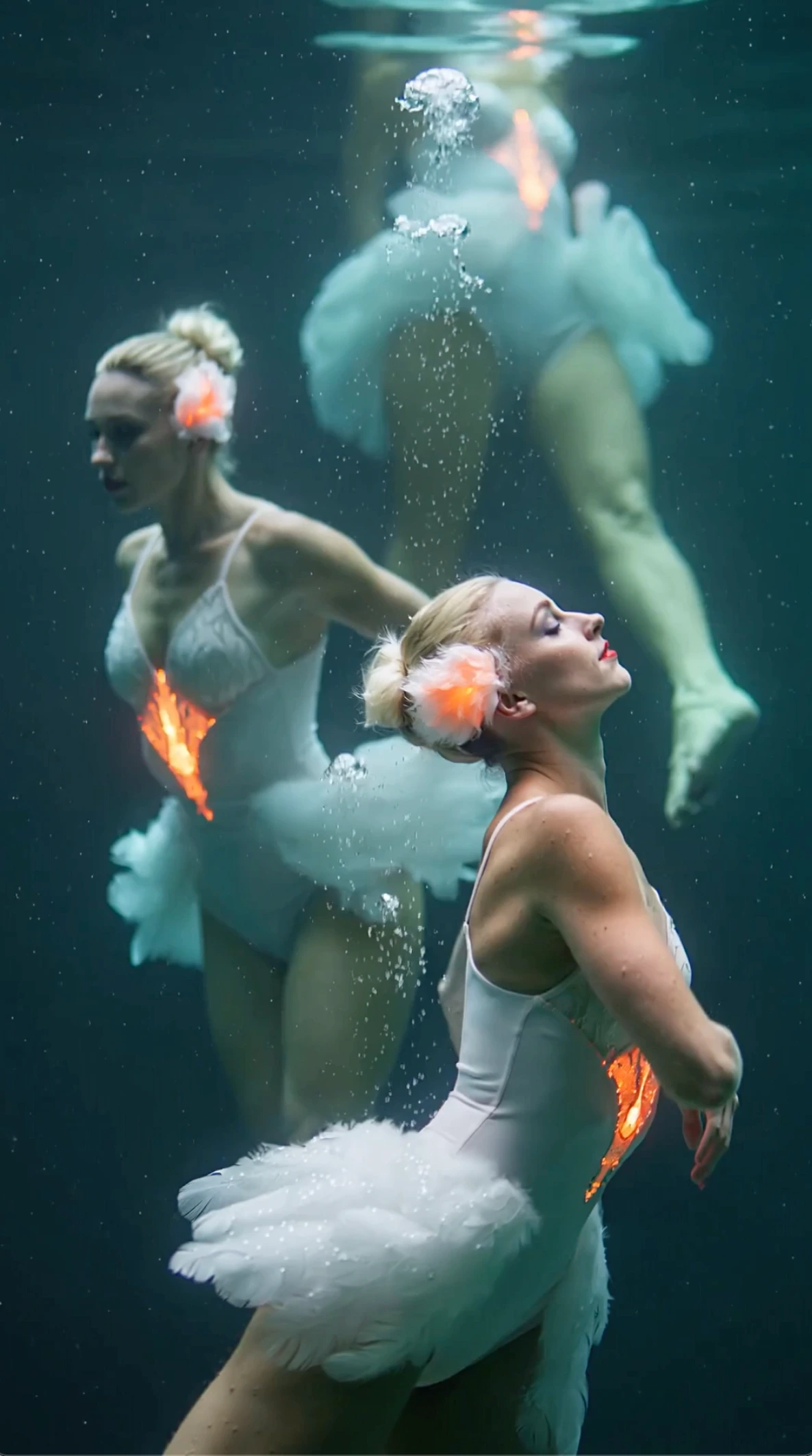
All videos and images shown are AI-generated synthetic content and do not depict real people or real events unless explicitly stated otherwise.
What Is New in Wan 3.0
Longer clips, sharper video, and clearer ways to start
Wan 3.0 makes everyday AI video easier to use.
You can create clips up to 1080p and 30 seconds, and start from the source material you already have—text, a photo, or a video.
That means fewer tiny clips to join later, and a better fit for social ads, product demos, and early scene tests.
Up to 1080p output
Get sharper video for product pages, ads, and client reviews when detail matters.
Clips up to 30 seconds
Fit more of a hook, demo, or short story into one clip instead of joining many short pieces.
Start from text, photo, or video
Write a scene, animate a photo, or restyle a video when the timing already works.
Why Creators Use Wan 3.0
Clear benefits for real projects
Draft concept videos up to 30 seconds before you book a shoot or final edit
Turn product and character photos into motion without rebuilding the look from scratch
Try new styles on footage you already have
Create in the browser so teammates can review drafts faster
How to add motion and keep the look
What to do when the look is already settled
Prepare a Motion-Ready Source Image
Pick a clear frame with a readable subject and a little room around the edges. Weak crops force the tool to invent detail you never planned. Clean lighting and a settled composition make motion notes shorter and more honest.
Separate Subject Motion from Camera Moves
Say what the person or product does, then say how the camera travels. Mixing both into one vague line often weakens control. Keep wardrobe language out of the motion line unless a change is intentional.
Protect Identity While Adding Motion
State what must stay the same—face, outfit, product shape—so likeness stays the priority while movement is added. Short stability notes beat long redesign paragraphs. If a take drifts, simplify the motion request first.
Describe the Ending Frame
Add a short note about the final crop or angle. Ending guidance helps the subject stay in a useful part of the frame. Think of the last frame as a soft target, not a second full redesign.
Limit Background Motion
Pick only a few moving cues such as fabric, steam, or a light shift. Extra noise fights the locked look you already chose. Restraint usually makes faces and product edges easier to trust in review.
Use Text to Video When You Have No Photo
If you do not have a picture yet, open the text to video page instead of forcing an empty upload. This page is built around a source image you already approved, so inventing one from words belongs somewhere else.
How this workflow works
From upload to a likeness-aware review
Upload the source image
Start with the frame that already defines composition and identity. Clean lighting and a clear subject help the generator stay faithful. If the still is noisy or heavily cropped, fix the file first.
Write motion, not a redesign
Prompt for body or product action and one camera move. Avoid rewriting outfit, face, or packaging unless that change is intentional. The still already answered those questions.
Generate and compare likeness
Check whether the result still looks like the upload. Adjust only the motion line if likeness slips. Put the original frame beside the take and ask what moved that should not have moved.
Why start from a still
What you gain when you start from a picture
Locked look from frame one
The upload carries appearance, so prompts can focus on motion instead of reinventing the subject. That split reduces argument about color, wardrobe, and product shape during early reviews.
Stronger identity anchors
Likeness is easier to hold when the still defines face, product, or wardrobe before generation. You are protecting something visible, not hoping a paragraph of adjectives will rebuild it.
Faster creative approvals
Everyone in the review already knows the photo. Feedback becomes about movement quality, not a brand-new look. That focus shortens meetings and makes notes easier to act on, especially when reviewers can place the original frame beside each take.
Less prompt guessing
You describe what changes over time, not every visual detail the camera already captured. Shorter prompts are easier to version, share, and debug across a team.
Natural handoff from design
Designers can export a frame and add motion without rewriting the entire concept in text. The design file remains the source of truth for appearance.
Clear next-step routing
If the project later needs clip restyles or mixed references, move to the matching tool page. Keep still-led work here so each tool stays honest about the input it expects.
When this path helps most
Jobs that begin with an existing visual
Product stills into motion ads
Bring product shots into short ads while keeping packaging and shape recognizable. Everyone already knows the main photo, so review focuses on movement quality instead of inventing a new look.
Portrait motion for social
Add subtle gestures to portraits without rebuilding the person from a text brief. Small moves and a gentle camera path often work better than dramatic redesigns when the portrait is already approved.
Storyboards into moving shots
Bring storyboard frames to life with controlled camera moves before a full shoot. Directors can test whether a push or a pan serves the scene while the drawn look stays the reference.
Property photo walk-ins
Turn room photos into gentle push-ins that show space while preserving architecture from the upload. The goal is spatial clarity, not a fantasy remodel with windows nobody photographed.
Campaign key visual motion
Extend a locked campaign still into a short moving cut without losing brand identity. Keep logo areas and product silhouettes stable, and let motion live in fabric, hands, or a restrained camera path.
Lookbook clip starters
Use this path as a lookbook starter: test garment motion from fashion stills before filming models. Early motion tests show whether drape and silhouette survive movement.
Common questions
Short answers before you upload
What does Wan 3.0 image to video do?
With Wan 3.0 image to video, you upload a photo, describe the movement you want, and get a short clip back in the browser. Then you compare that clip with the picture you started from. It is not built for prompt-only ideas with no image.
Should my prompt redesign the subject?
Usually no. Let the upload define appearance. Prompt for action, camera travel, and only the details that should change. Redesign language is the fastest way to lose the reason you started from a still.
What makes a good upload?
Use a clear subject, readable edges, and enough surrounding space for the intended move. Tight crops limit how far the camera can travel, and muddy files make likeness harder to hold.
How is Wan 3.0 image to video different from text to video?
Wan 3.0 text to video invents the look from words. Wan 3.0 image to video starts from a source image and adds motion to it. Choose based on whether appearance is already locked.
How do I keep likeness in Wan 3.0 while adding motion?
Name what must stay stable, then limit the prompt to what should move. Likeness improves when redesign language is removed and background motion stays modest.
Can I animate a full story from many frames?
Treat each still as one beat. Generate separately, then assemble outside the tool if you need a longer sequence. One frame, one job keeps continuity decisions intentional.
When should I use video to video instead?
Switch when you already have footage to restyle. This page is for photos, not clips. If the timing already exists in a take, video to video is usually the better home.
What if the face or product drifts?
Simplify the prompt, strengthen stability notes, and reduce competing camera and environment instructions. Compare every retry to the original upload. Wan 3.0 supports 1080p video output and clips up to 30 seconds once likeness holds.
Animate an image with Wan 3.0
Upload a frame, direct only the motion that should change, and review likeness beside the original still
Works in your browser