
Wan 3.0 Multi-Modal for Photos, Clips, and Audio
When one prompt, one photo, or one clip is not enough, bring several files into a single generation. Give every file a job—look, motion, or timing—and keep the text short enough to settle disagreements. You can create up to 1080p video and clips up to 30 seconds.
 Wan 3.0Multi-Input AI Video Generator
Combine image, video, and audio references in one Wan 3.0 multi-modal generation
Upload up to 3 extra videos as multi-modal inputs
Tip: Be detailed and specific for better results. Describe the subject, style, lighting, mood, and composition.
Example Gallery
See what you can create with multi modal
Gallery
Scroll through sample clips. Tap any video to open it full screen.
All videos and images shown are AI-generated synthetic content and do not depict real people or real events unless explicitly stated otherwise.
Showcase
Browse sample AI video clips. Click any tile to play the full clip.
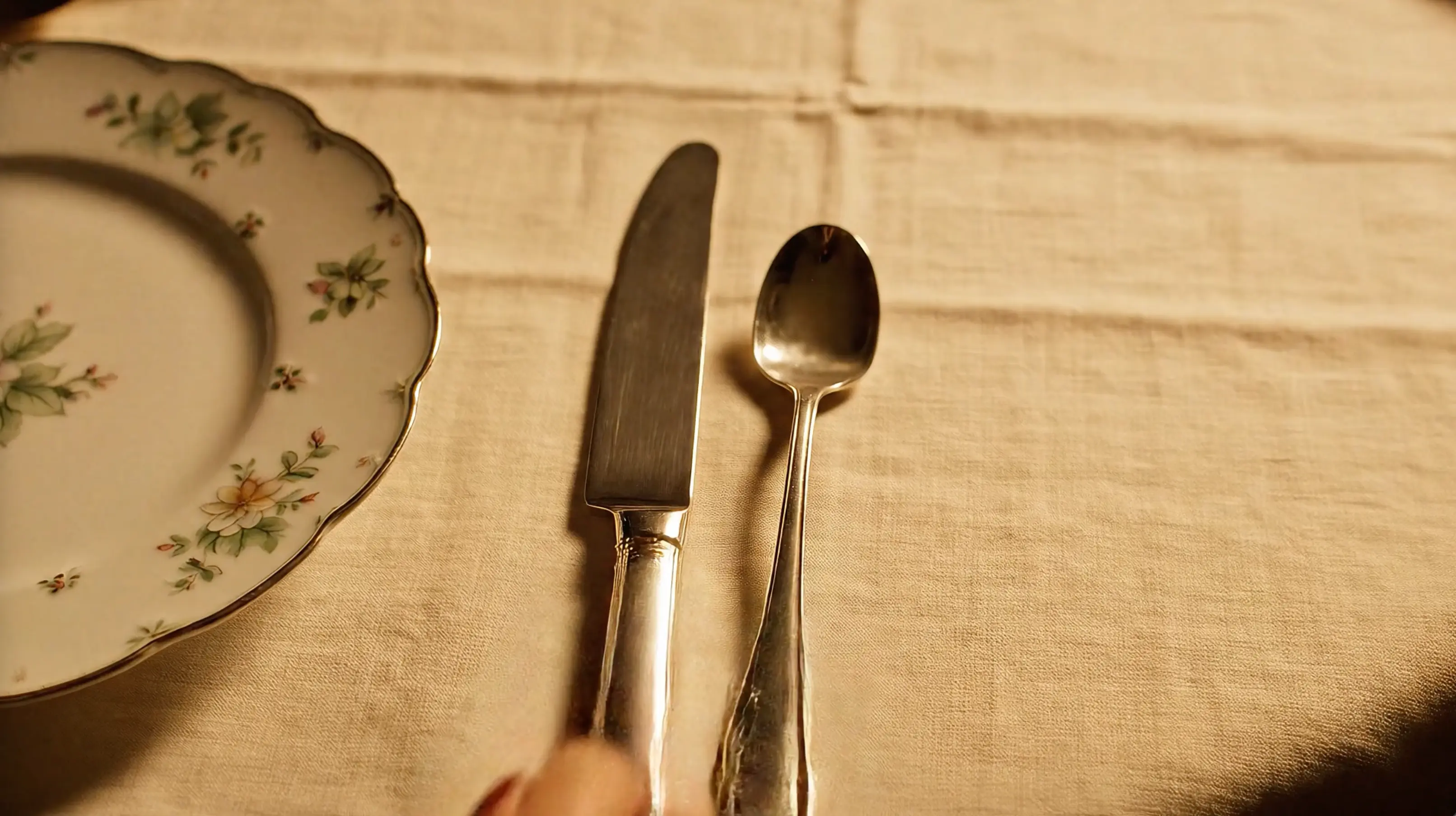
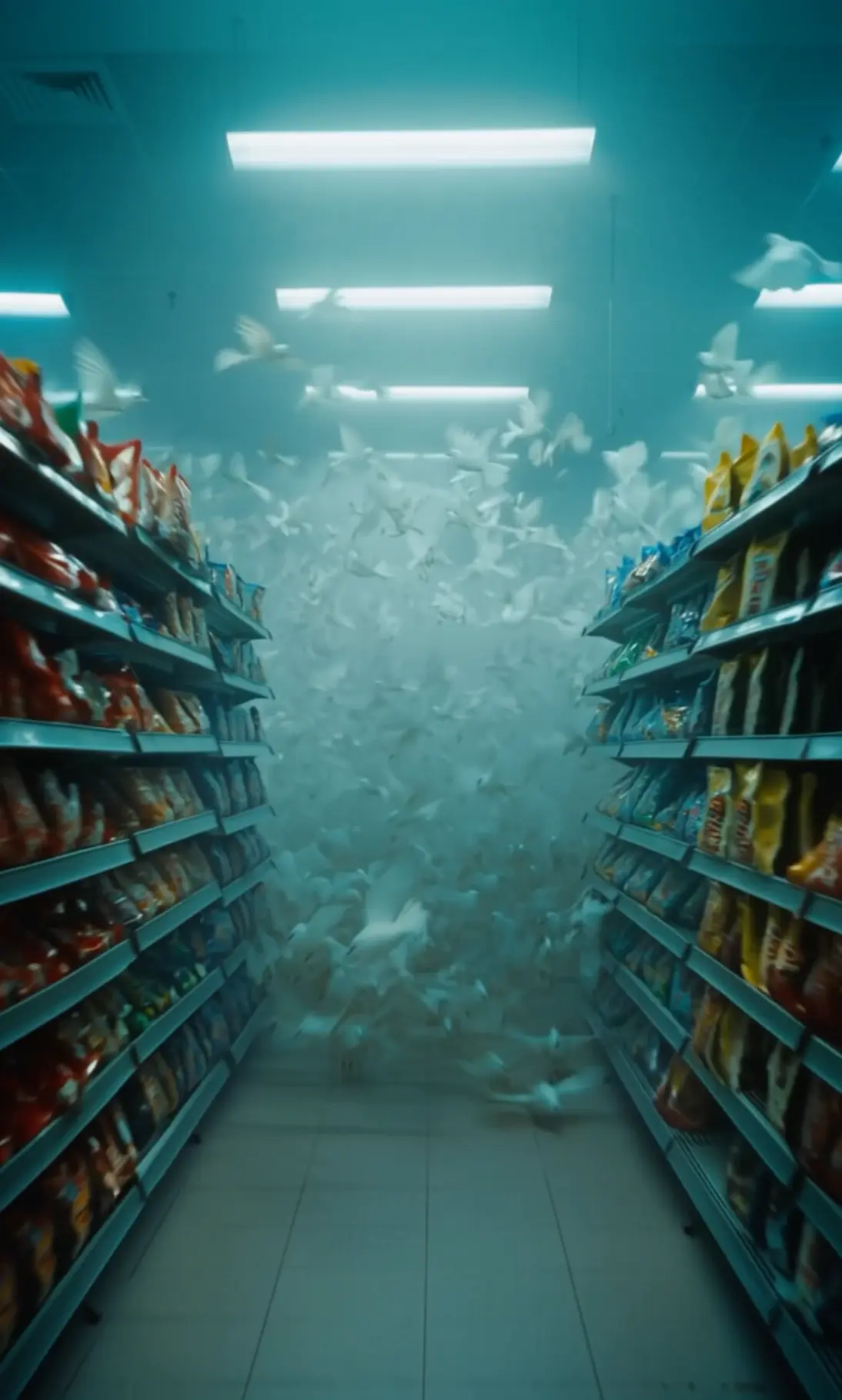
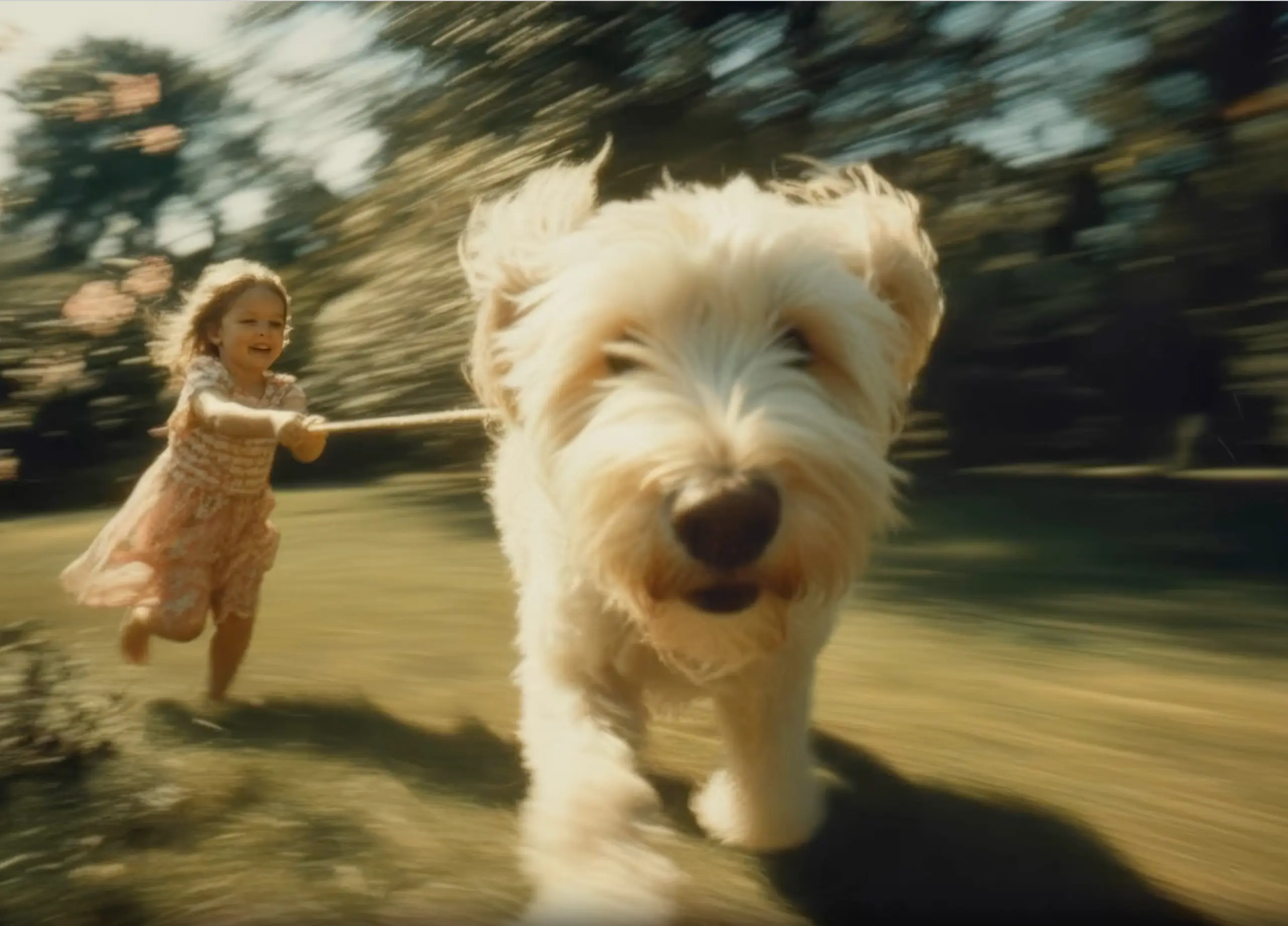
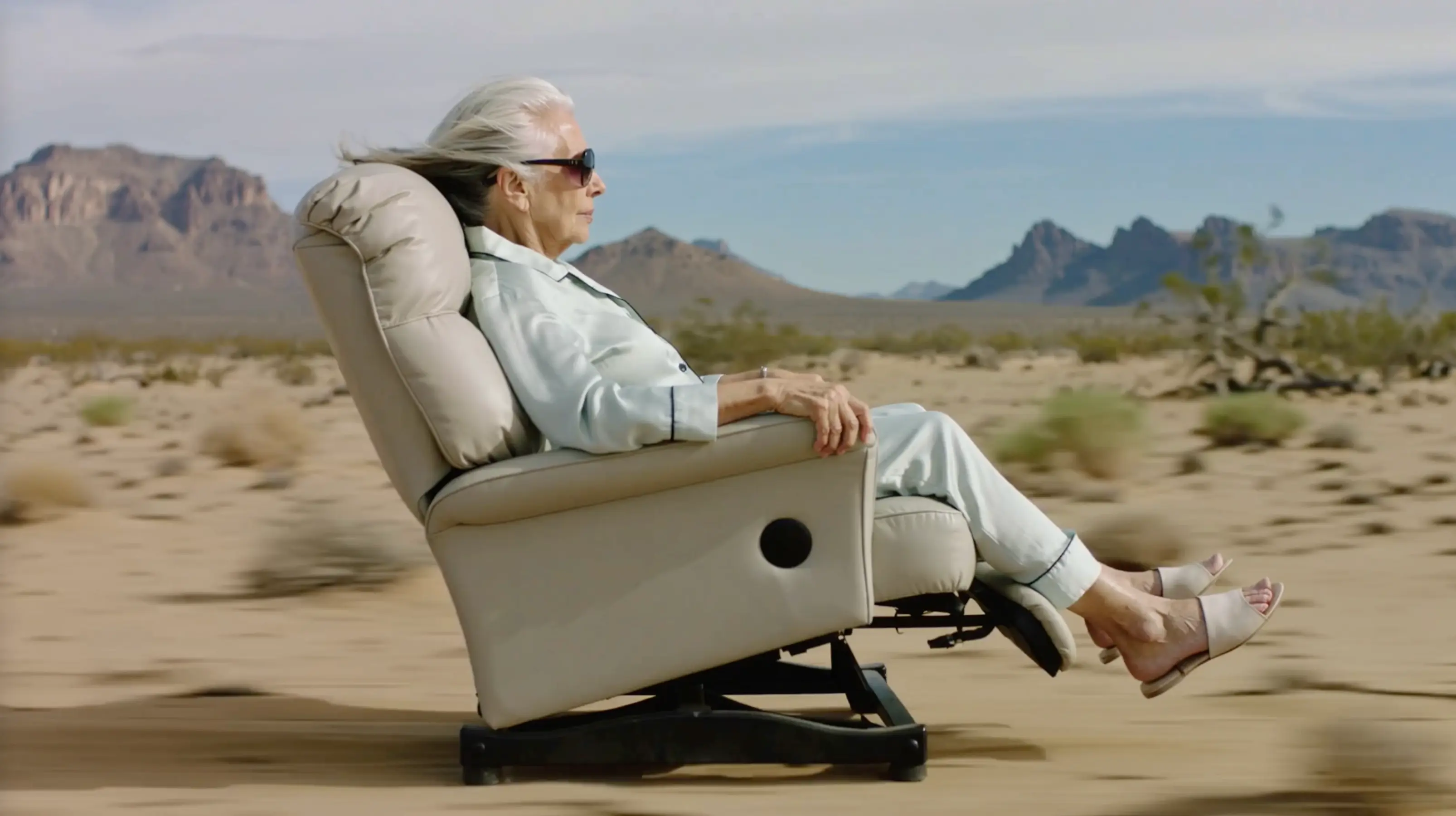
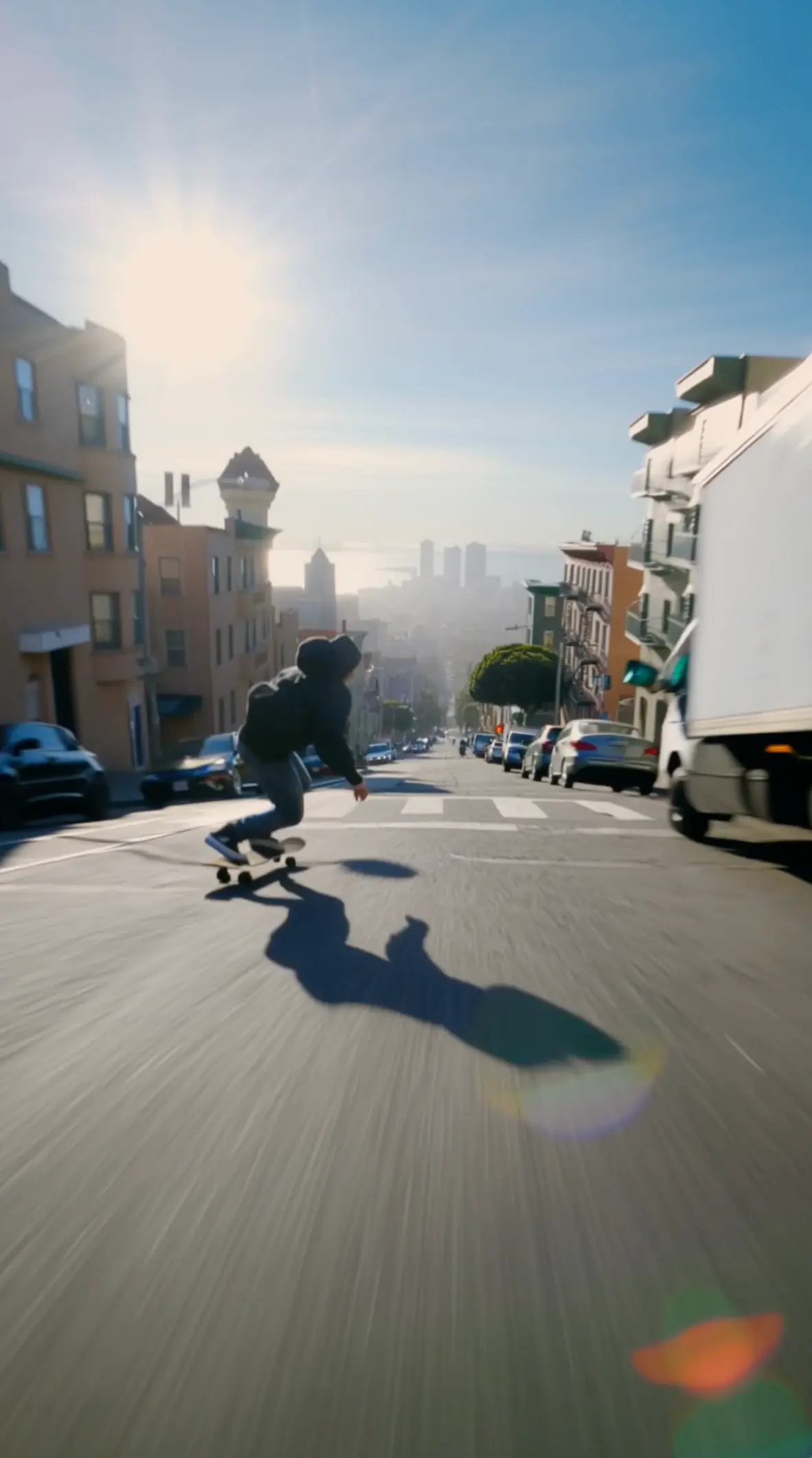
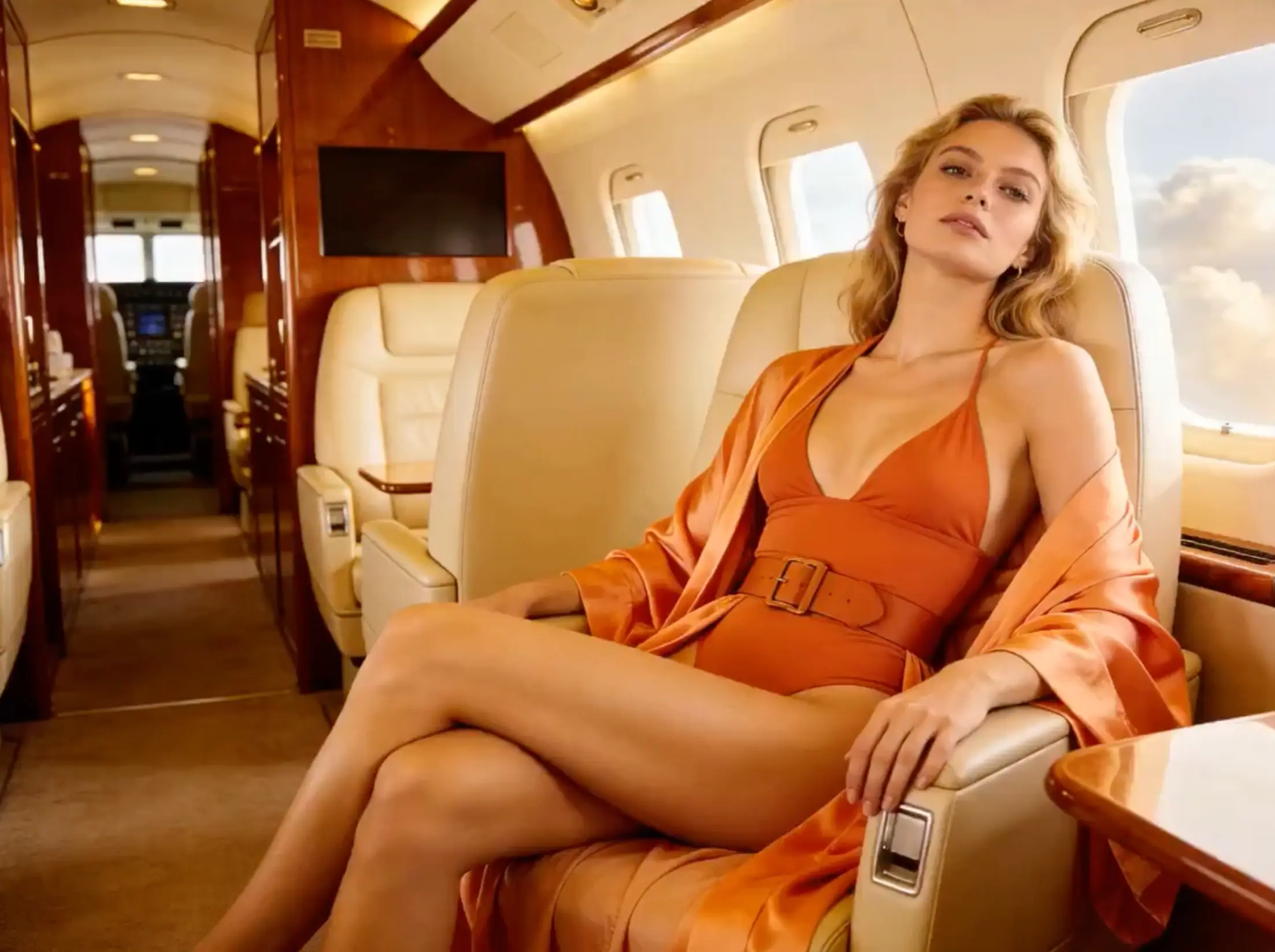
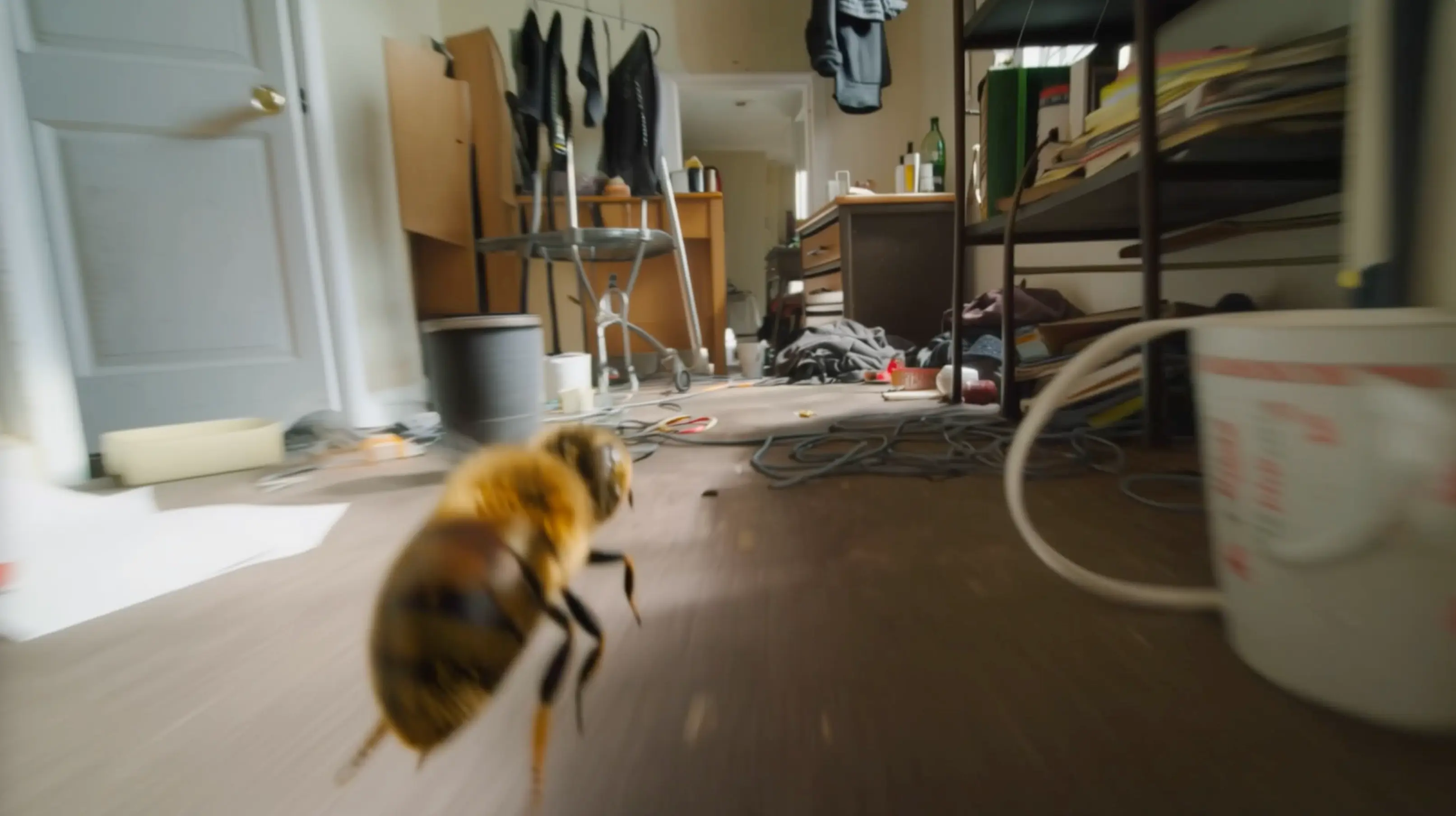
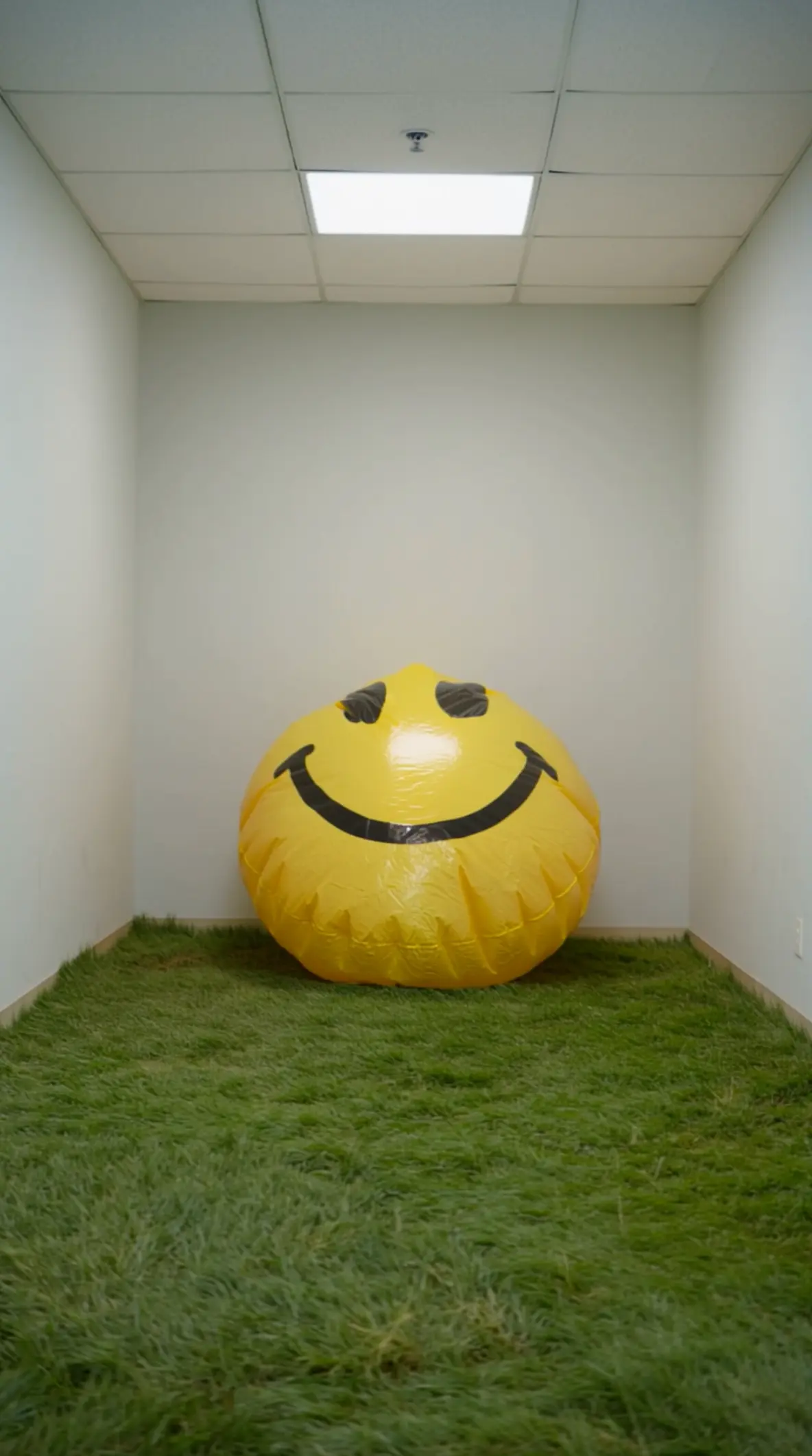
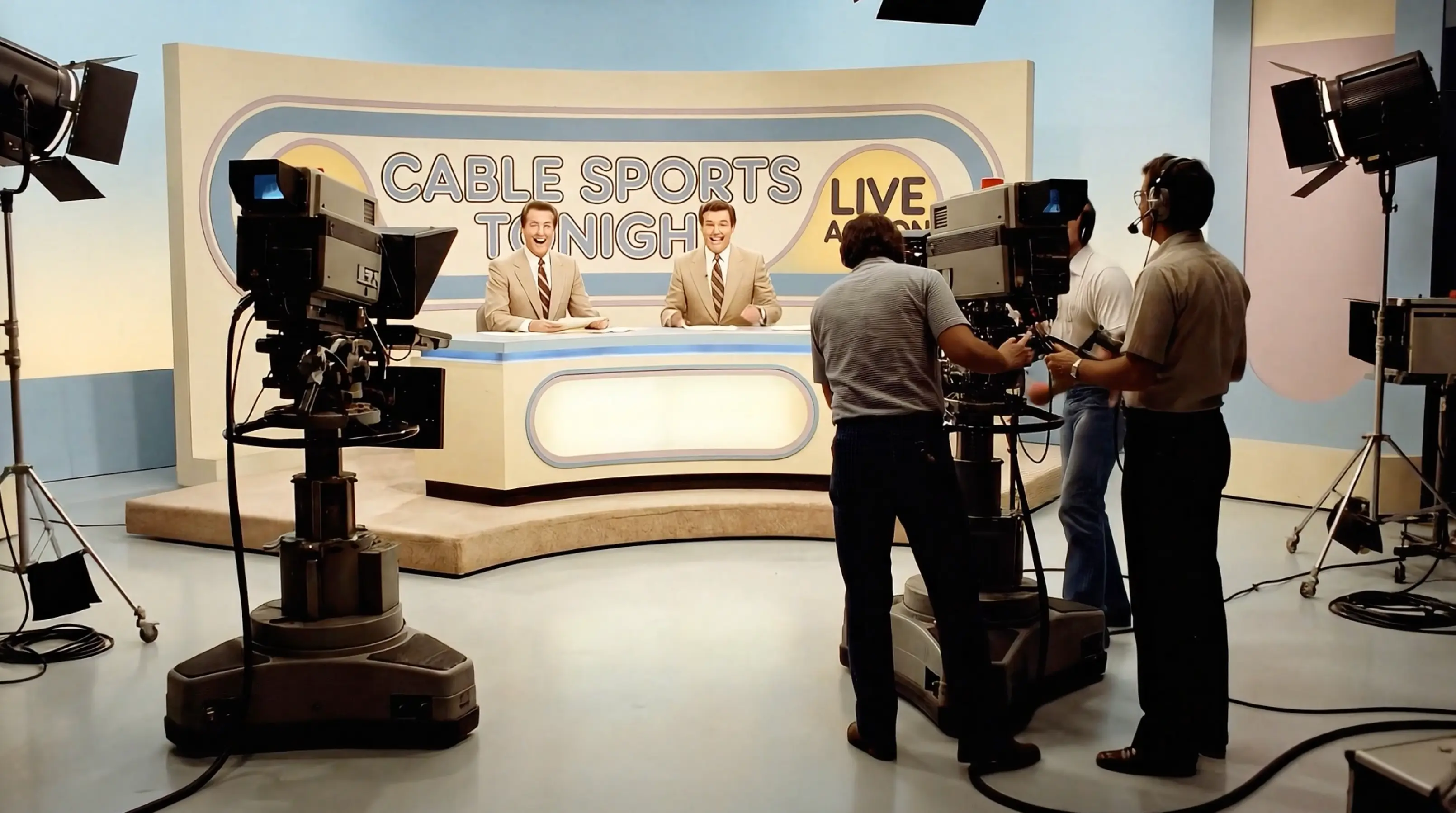
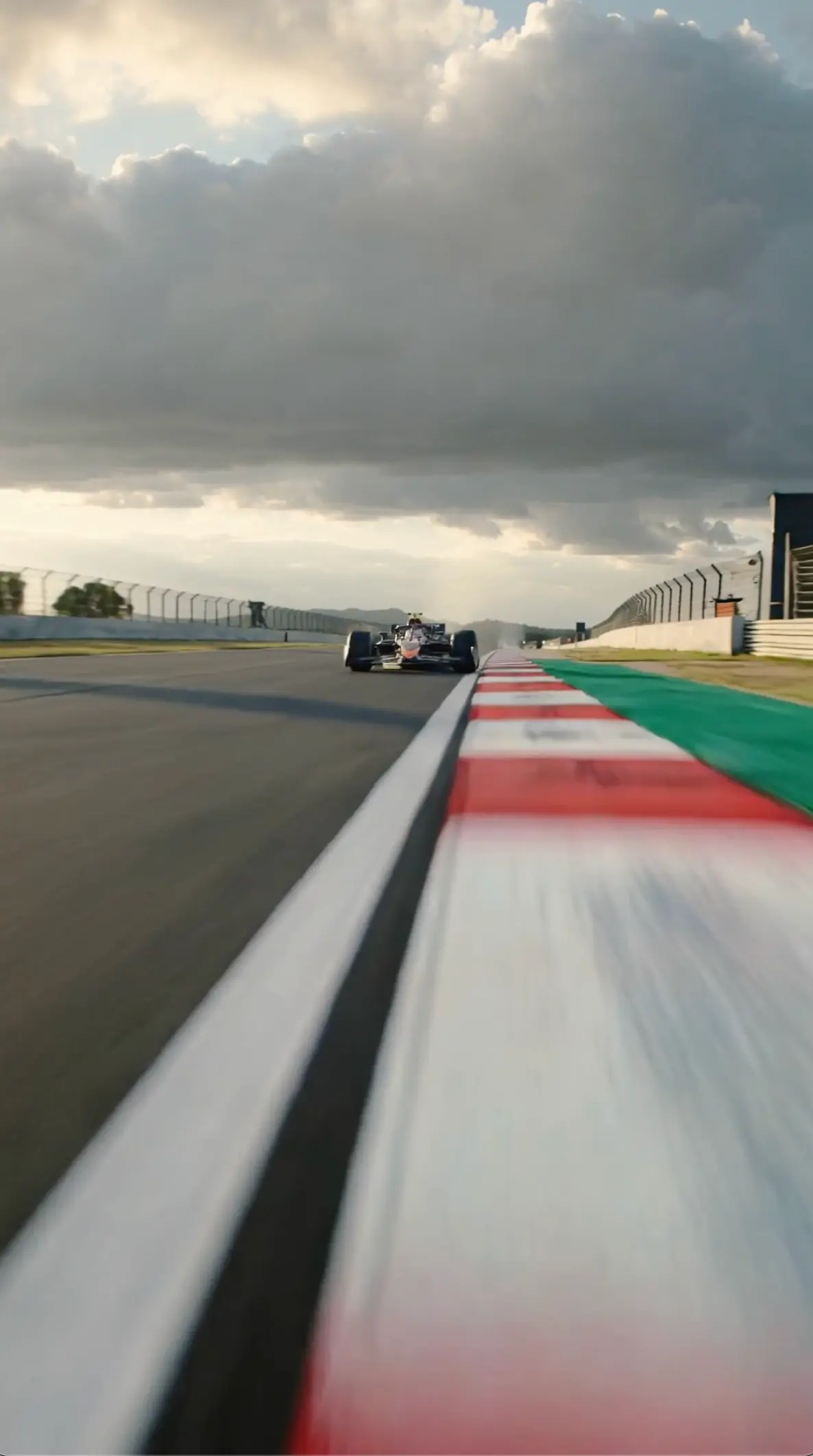
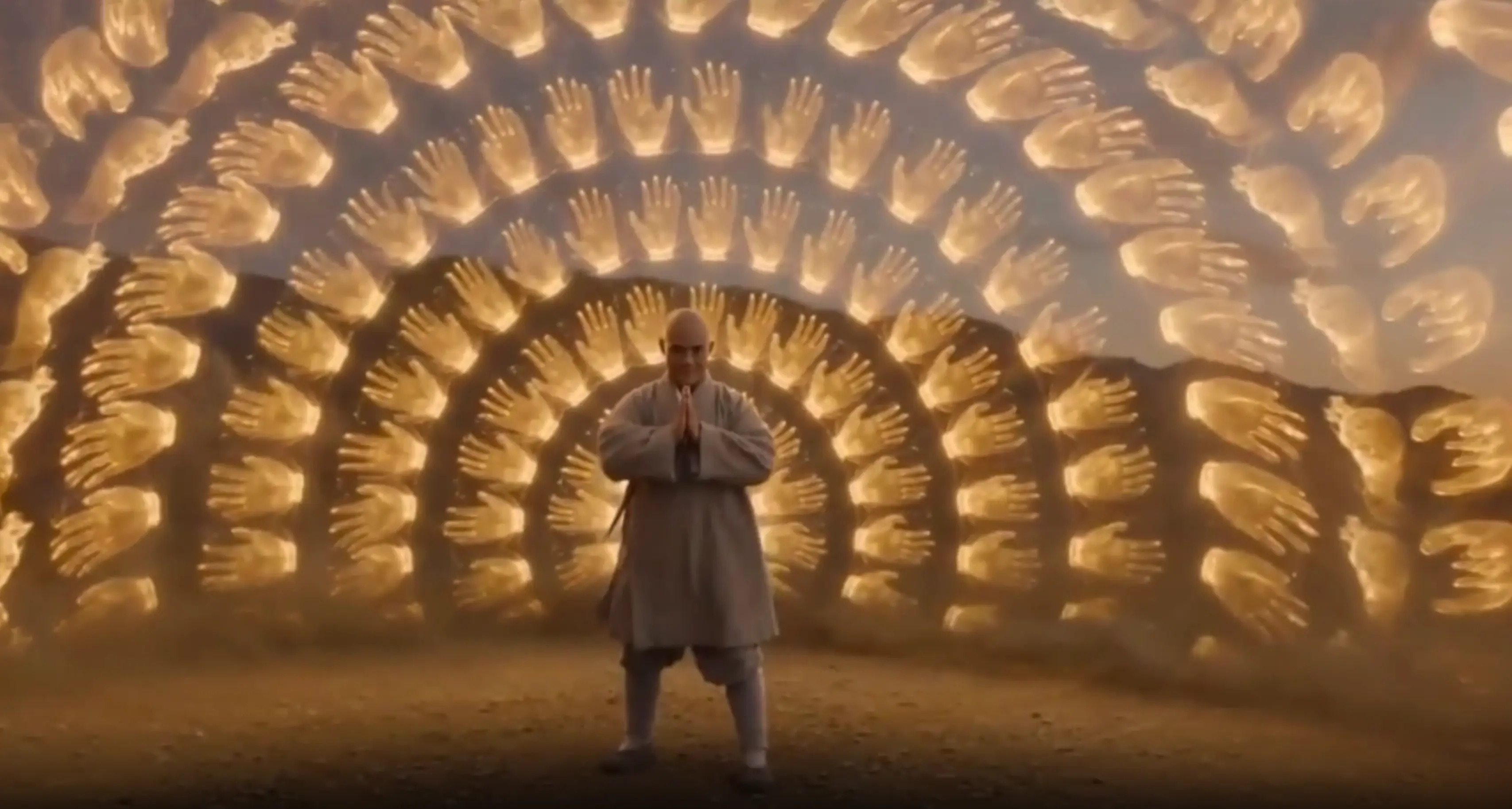
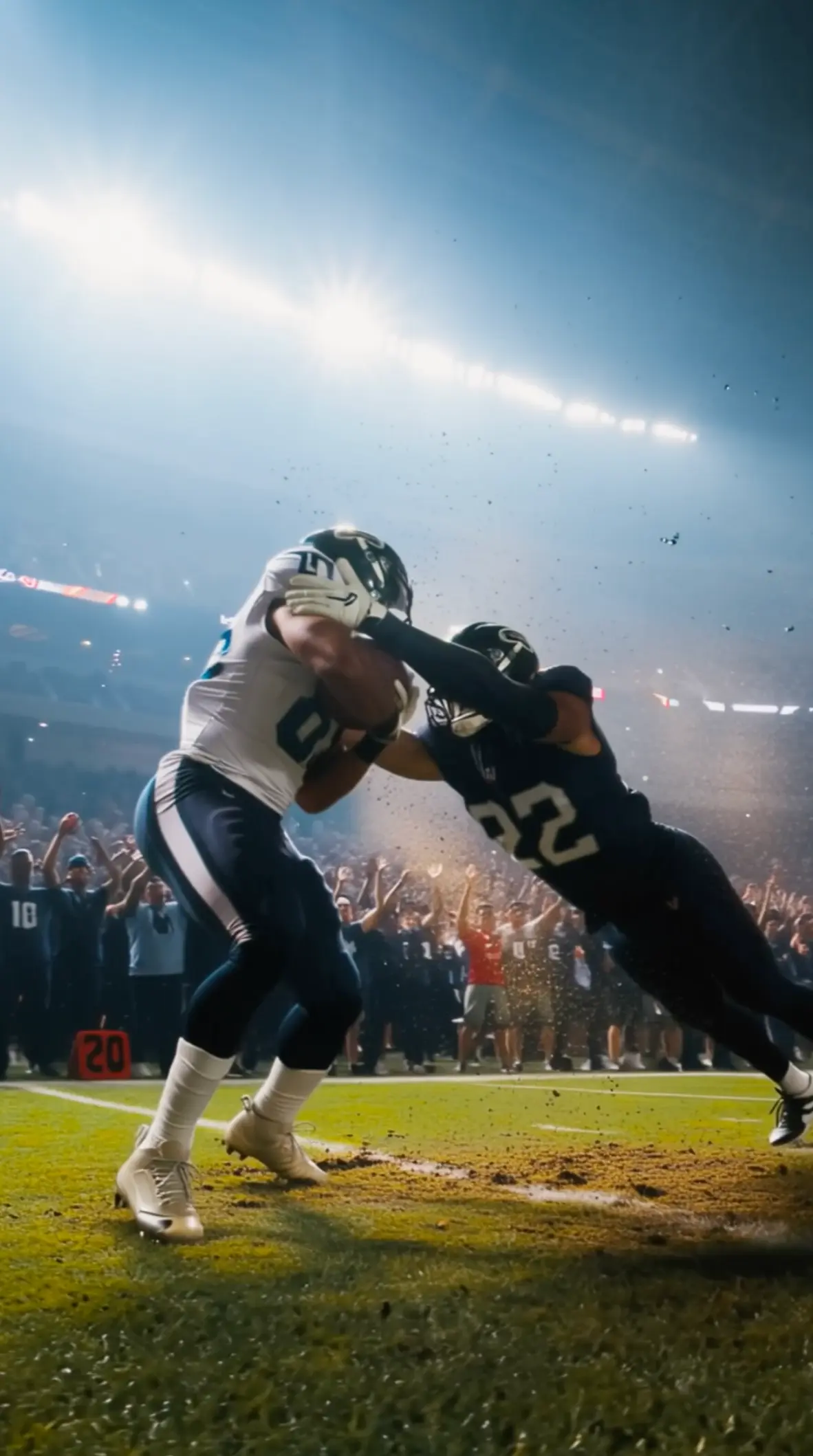
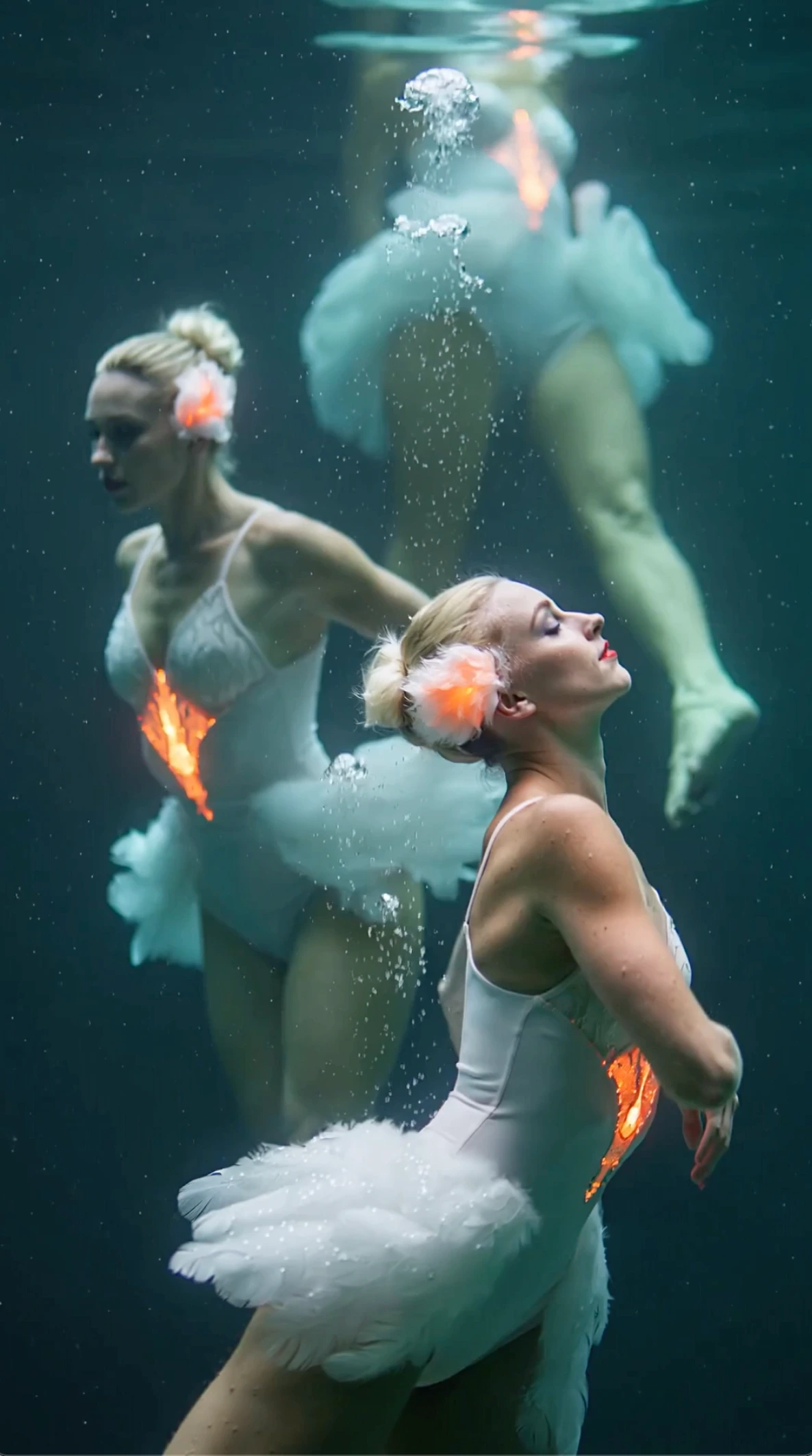
All videos and images shown are AI-generated synthetic content and do not depict real people or real events unless explicitly stated otherwise.
What Is New in Wan 3.0
Longer clips, sharper video, and clearer ways to start
Wan 3.0 makes everyday AI video easier to use.
You can create clips up to 1080p and 30 seconds, and start from the source material you already have—text, a photo, or a video.
That means fewer tiny clips to join later, and a better fit for social ads, product demos, and early scene tests.
Up to 1080p output
Get sharper video for product pages, ads, and client reviews when detail matters.
Clips up to 30 seconds
Fit more of a hook, demo, or short story into one clip instead of joining many short pieces.
Start from text, photo, or video
Write a scene, animate a photo, or restyle a video when the timing already works.
Why Creators Use Wan 3.0
Clear benefits for real projects
Draft concept videos up to 30 seconds before you book a shoot or final edit
Turn product and character photos into motion without rebuilding the look from scratch
Try new styles on footage you already have
Create in the browser so teammates can review drafts faster
How to combine several files without muddling the result
What to do when look, motion, and timing live in different files
Assign Each Asset a Job
Decide which file sets appearance, which sets motion, and which sets timing. Clear roles stop uploads from competing inside one request. If two files claim the same job, remove one before you write a longer prompt.
Balance Text Guidance with Media References
Let the uploads carry the details they already contain. Use text to resolve conflicts, not to restate every pixel from every file. When the paragraph grows longer than the role list, you are probably fighting your own media.
Check That Every File Agrees
After a run, check whether the face, the product, the motion, and the pacing still match. That agreement is the quality gate for a multi-input job. When one of them fails, change only the file or the line responsible.
Remove Conflicting Instructions
If a still says daytime and the prompt says night, pick one. Agreeing signals produce cleaner takes than clever contradictions. Treat conflict removal as prep work, not as something the generator should magically negotiate.
Start Lean, Then Add References
Begin with the minimum still, clip, and sound set needed for the shot. Extra uploads often dilute the main subject and make diagnosis harder. Add another reference only when a clear gap remains after the first lean pass.
Use Single-Input Pages When Simpler
If you only have text, a still, or one clip, open the matching tool instead of forcing a multi-file setup. Complexity should follow the asset list you actually have. Routing early protects everyone from debugging the wrong tool.
How this workflow works
From asset roles to one combined generation
Gather mixed references
Collect the still, clip, and sound files that matter for the shot. Label each file’s job before you upload so the team shares the same map of responsibilities. A shared checklist prevents silent disagreements about which file is the hero.
Write a conflict-aware prompt
Explain how the files should work together. Keep the text short enough that media remains primary. Your sentences should referee disagreements, not duplicate what the uploads already show.
Generate and audit continuity
Review the clip for agreement across look, motion, and pacing. Adjust asset roles or remove one reference before the next pass. A smaller pack with clearer jobs usually beats a larger pack with vague hopes.
Why use a mixed-input workflow
Advantages when assets arrive in different forms
Fewer tool handoffs
Keep still, clip, and sound references in one generation instead of bouncing across single-input pages. Fewer handoffs mean fewer chances to lose the role map mid-project. That matters when deadlines are short and assets live in different folders.
Richer control signals
Each medium can contribute a different constraint—look, motion, or timing—inside the same request. That separation is harder to keep when everything is flattened into one paragraph of adjectives.
Clearer creative briefs
Asset-role planning forces the team to say what each file is for before a run starts. Ambiguity becomes visible on a checklist instead of appearing only after a failed take. Write the role list where collaborators can see it.
Better iteration targets
When continuity fails, you know whether to change an upload, the prompt, or the balance between files. Targeted fixes beat starting over with a larger, louder pack. Keep a short changelog so the next pass has a clear owner for each fix.
Reusable reference packs
Save a working set of files and reuse it for alternate shots with only light prompt edits. Stable packs help series work stay coherent across episodes or campaign chapters.
Honest workflow routing
This page stays for multi-input jobs. Simpler tasks stay on their own tool pages so nobody is forced into extra complexity.
Where mixed-input creation helps
Jobs that need more than one media type
Brand pack assembly
Combine a product still, a motion reference, and a timing cue when campaign assets already exist in different formats. Role labels keep the pack from turning into a pile of competing hero files.
Character plus motion lock
Use one image for identity and one clip for movement when a single still cannot supply both. The still guards likeness; the clip teaches rhythm without asking words to invent both from scratch.
Audio-led visual drafts
Pair narration or music with visual references so pacing follows the sound bed more closely. Timing-first drafts help editors feel cuts before a full timeline exists.
Campaign remix tests
Blend approved stills and prior clips to explore new treatments without starting from a blank prompt. Reusing known assets keeps brand memory intact while you test fresh combinations.
Quick previews from storyboards
Feed storyboard frames and a timing reference together when a director wants a fast preview. The goal is a decision, not a finished cut. Reviewers can argue about direction before anyone opens a full edit.
Localized cut exploration
Keep visual references fixed while swapping language-led sound cues for alternate market drafts. Visual lock plus audio swap is often safer than regenerating the entire look for each locale.
Common questions
Short answers before you upload a set of files
What does Wan 3.0 multi-modal do?
With Wan 3.0 multi-modal, you combine photo, clip, and sound references in one generation in the browser. The copy here describes this website’s workflow, not an official Alibaba model release.
When should I use Wan 3.0 multi-modal instead of text to video?
Use Wan 3.0 multi-modal when you already have several files that must work together. If you only have words, stay on Wan 3.0 text to video. Extra uploads without a job usually make results worse, not richer.
How do I assign each asset a job?
Before upload, label whether a file controls appearance, motion, or timing. That role list should guide both your prompt and your continuity review.
What if my uploads disagree?
Remove or replace the conflicting file. Results degrade when uploads send opposite instructions. Do not ask the prompt to reconcile a fight the media already started.
How is Wan 3.0 multi-modal different from video to video?
Wan 3.0 video to video starts from one clip. Wan 3.0 multi-modal is built for several media types in the same request. Choose the simpler page when a single clip is enough.
What should I check after generating?
Review identity, motion path, and pacing. If one fails, change only the related asset or instruction so you can learn which signal mattered.
Should I upload every available file?
No. Start with the smallest set that covers look, motion, and timing. Add more only when a gap remains after a lean first pass.
What output sizes can I create?
Wan 3.0 supports 1080p video output and clips up to 30 seconds. Confirm the role map and continuity first, then raise length or resolution once the pack still agrees with itself.
Combine inputs in Wan 3.0 multi-modal
Assign asset roles, balance short text with media, and generate from a lean pack
Works in your browser